Question:
How can I add a different title to each schedule page?
|
Answer:
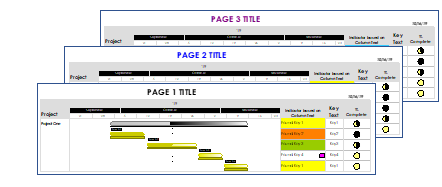
By default, the chart title is the same on each page.
However, using freeform text in the place of a chart title allows you to add different text for each schedule page.
- First, delete the existing schedule title by right-clicking the title and choosing Delete.
- Next, increase the size of the top margin. On the Layout tab enter 1.0 (or more) in the box labelled Top.
- Next, click the Text tool in the toolbox. Click in an empty space on the schedule and begin typing the freeform text title for the page. (If the Title dialog box pops up, just exit it and type a little higher.)
- Repeat step 3 for each page.

|
 2017
2017