Templates save time by keeping a customized toolbox, columns, column headings, page layout, and more. In this way, templates retain the formatting (the "look" of a chart) while charts preserve schedule details, such as column text, symbols, task bars, chart title, and more.
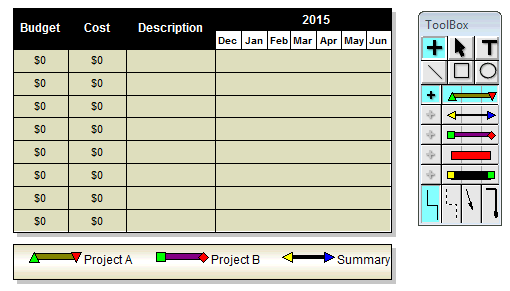
Example (a template compared to a chart):
After setting up the toolbox, columns and legend, this Milestones schedule was saved as a template. The template was then applied to a blank schedule, resulting in the chart below. The template retained the color theme, column titles, date range, toolbox symbology, date heading types, column formatting, legend entries, and more.
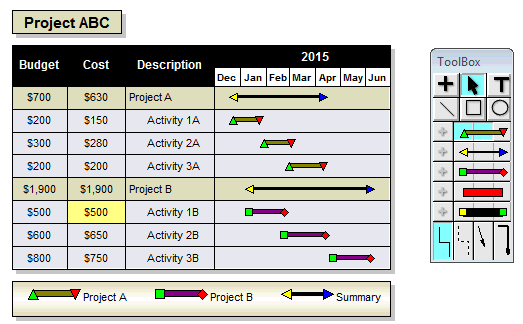
This is a typical chart based on the template above.
Open a template onto an existing schedule:
A template formats the Milestones chart which is currently open. Templates change the formatting, and not the data contained within the chart.
The columns in the existing schedule should match the column arrangement and column types in the template.
The template’s symbols replace those of the original schedule, according to their positions in the toolbox.
Change the format of a schedule by opening a template:
Open the schedule if it is not already open.
Choose File | Files and Templates: Open and Save Options | Open
.
Choose Personal Template or Standard Template.
Locate the template.
Click the file name.
Click Open.
Notes:
The Standard Templates are distributed with Milestones Simplicity and are available in the Milestones Simplicity Setup Wizard.
Personal Templates can be created and saved by individual users.
Milestones can start new schedules with the same columns, toolbox, page dimensions and more. These settings are stored in a special template file named default.mtp. The default.mtp file can be saved to either the Personal Templates folder or the Standard Templates folder. If there is a default.mtp file in both folders, the Personal Template folder's default.mtp file is used.
When
New from the File | Files and Templates: Open and Save Options menu is selected, the default.mtp file is opened.
Save a new default.mtp (default template):
Set up a schedule with the format and toolbox required.
Choose File | Files and Templates: Open and Save Options | Save As...
| Standard Template or Personal Template.
Name the template default.mtp
Click Save.
If asked to replace the existing file, click OK.
Notes:
The Standard Templates are distributed with Milestones Simplicity and are available in the Milestones Simplicity Setup Wizard.
Personal Templates can be created and saved by individual users.
Items saved and not saved in the template:
When saving a file as a Personal Template or Standard Template, these elements of the schedule are saved with the template.
The schedule layout - chart size, margins, column widths, legend height, rows per page
Background color, frame and shadow
Calendar icons in date SmartColumns
Chart title text format and background format (but not the chart title text)
Column headings and SmartColumn settings
Column Text Containing filters which were saved
Current date line and text display
Date headings and all timescale settings
Date sensitivity options
Default symbol size
Default text styles
Dependency mode setting
Embedded pictures
Gridline settings
Legend entries and legend format
Month and weekday name overrides
Multi-Column Sort names which were saved
Override Symbol Date and Text Display options
Page number display
Status line display toggle and properties
Symbol date format
Toolbox settings, including the size of the toolbox, and the symbols and bars used
View modes: Gantt, Calendar
When saving a file as a Personal Template or Standard Template, these elements of the schedule are NOT saved with the template.
Bookmarks
Freeform text
Picture files which are not embedded
Hidden menu items (this is a global setting applied to all schedules)
Lines, circles or boxes drawn with the drawing tools
Schedule title
Sidebar and toolbar shortcut button list (this is a global setting applied to all schedules)
Symbols and bars on the schedule
Task names on the schedule and any text entered into columns
Start a new schedule with a template:
Open a blank schedule and then apply a template to format that blank schedule. Then proceed to add schedule data such as start and end dates, column text, a chart title, and more.
Start a new schedule by choosing File | Files and Templates: Open and Save Options | New
on the toolbar.
Then choose File | Files and Templates: Open and Save Options | Open
| Personal Template or Standard Template.
Select the file name of the template to open (an .MTP file) and choose Open.
Notes:
The Standard Templates are distributed with Milestones Simplicity and are available in the Milestones Simplicity Setup Wizard
Personal Templates can be created and saved by individual users.
Click File | Files and Templates: Open and Save Options | Save As... | Personal Template.
Enter a template name in the field labeled File Name.
Click Save.
Notes:
The Standard Templates are distributed with Milestones Simplicity and are available in the Milestones Simplicity Setup Wizard.
Personal Templates can be created and saved by individual users.
Copyright © 2018 KIDASA Software, Inc. All rights reserved.