If you are reading this, your product is Milestones Simplicity. KIDASA Software, the makers of Milestones Simplicity also offer Milestones Professional. Milestones Professional includes everything that Milestones Simplicity has plus quite a few additional bells and whistles.
Upgrade from Milestones Simplicity to Milestones Professional. (Click the Buy link and purchase 1 Upgrade from Milestones Simplicity to Milestones Professional)
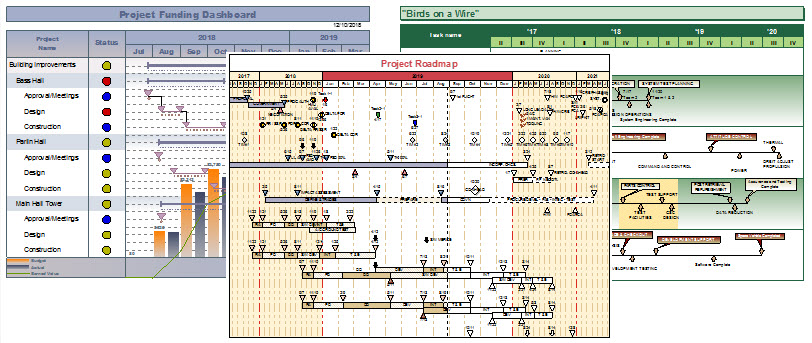
Milestones Professional offers a direct interface to Microsoft Project, making it easy to generate presentation report formats beyond the standard formats offered by Microsoft Project. A step-by-step wizard makes it easy to create presentation-ready schedules. A few examples are shown below:

Milestones Professional's offers an import from Oracle Primavera XML format project schedules. A wizard similar to the one offered for Microsoft Project makes it easy to create presentation-ready schedules.
Import and Export from Microsoft Outlook
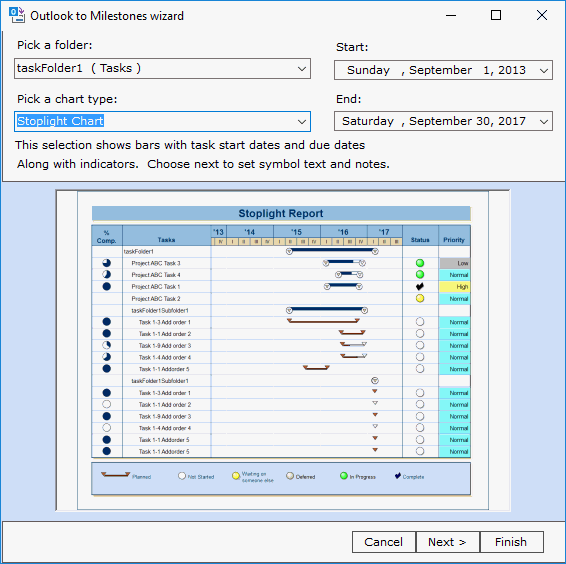
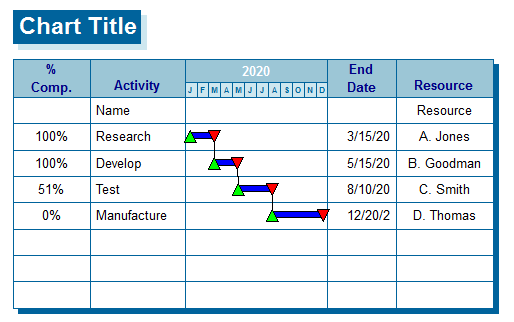
From this:

To this:
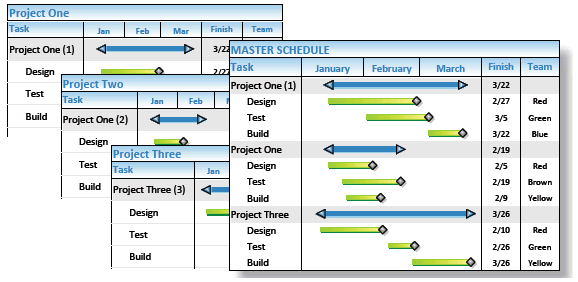
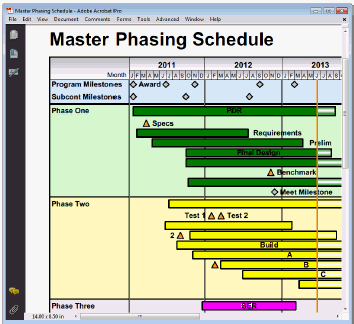
Merge two or more sub-schedules into a single master schedule to get a top-level view of multiple projects. Simply update the master schedule to see the latest sub schedule information.
Manage multiple projects through symbol linking. Base the date of a symbol on a different symbol in another schedule or the same schedule. In the example below, when a linked symbol in Project 1 Detailed Report moves, the corresponding symbol on Project Status Overview moves also.
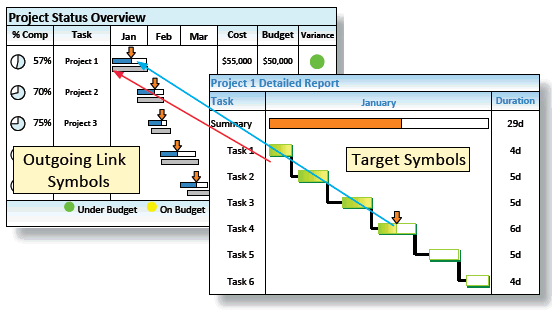
Any symbol or task row on the schedule can have hyperlinks to other schedules, documents or Internet web pages. Once linked, it's possible to open the objects with a click of the mouse. This makes it possible to use a Milestones Professional schedule to manage all aspects of a project!

Sort tasks
Filter tasks
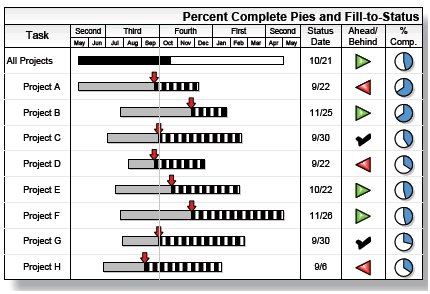
Percent Complete SmartColumns display the percentage with an optional percent complete pie, or just the percent complete pie symbol, as measured by the status symbol (here, the arrow symbol).
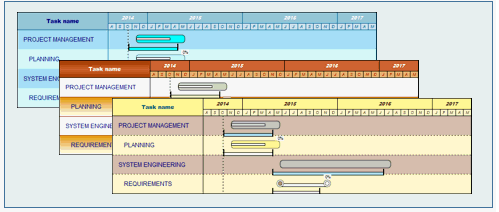
Apply a color theme to a new or existing schedule for instant color formatting. Choose from more than 40 color themes or create and save a new color theme.
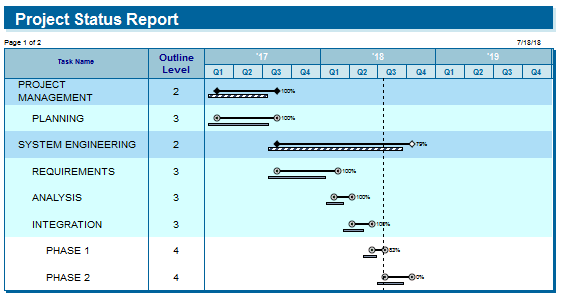
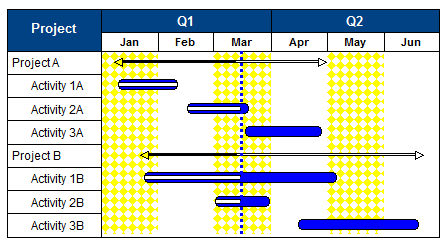
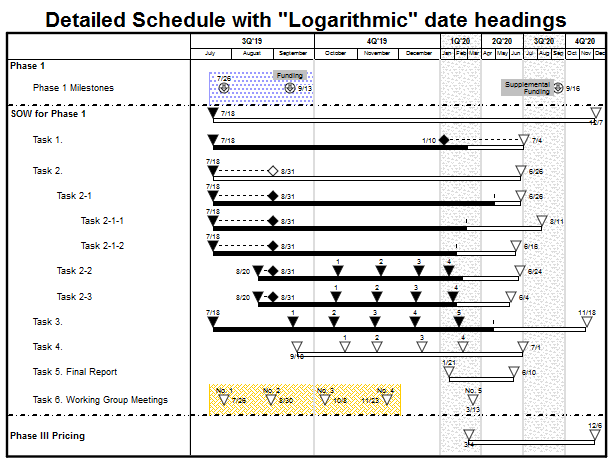
Set up date headings to have specific monthly time periods display wider.
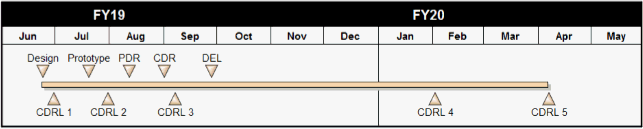
Expand years:

or expand months:
|
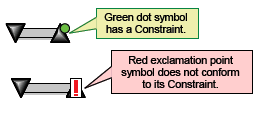
Any symbol can have a constraint which limits the symbol’s movement or triggers a user-defined condition, such as displaying a reminder note or launching a hyperlink. Using the arrow tool, click once on a symbol within the schedule area and choose Selection | Constraints. When the symbol is moved such that it does not conform to a date constraint that you have set, the symbol will be overlaid with a large exclamation point like the one shown: |
 |
|
Milestones Professional offers many ways to distribute and present the schedules. • Print the schedule to a variety of devices. • Presentation "slide-show" mode. • Save to PDF. • Easily publish any schedule to the Internet or company Intranet. • Publish a complete hierarchy of schedules for Internet/Intranet use. • Copy all Pages to PowerPoint. • Include the schedules in other documents, such as PowerPoint, Word, Excel, and other Windows documents. • Download the free Milestones Professional Viewer. |
 |
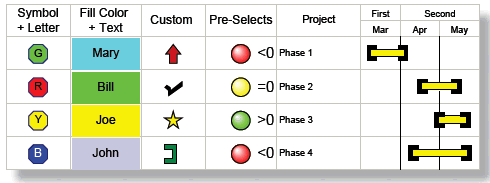
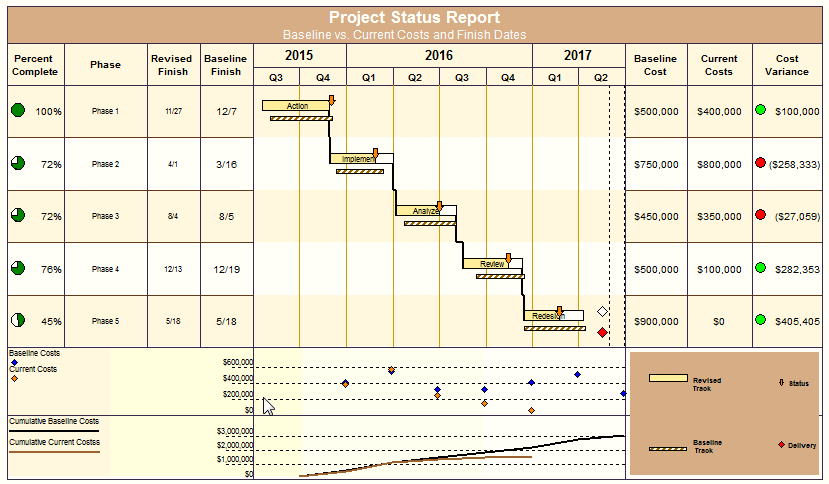
Milestones Professional allows you to track and graph numbers, make calculations between columns, and display status stoplights for at-a-glance reporting.
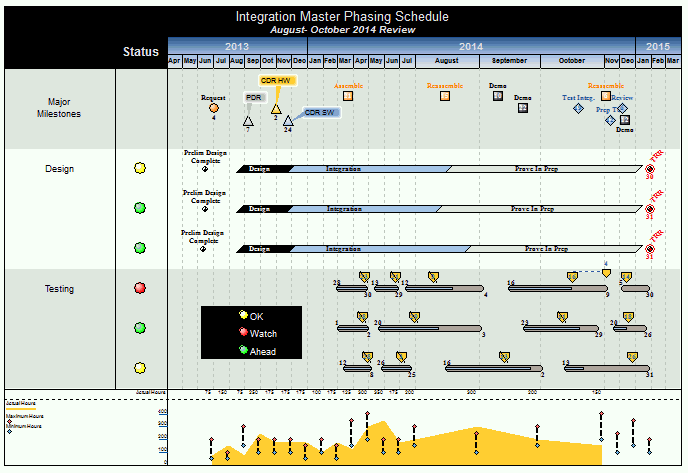
In addition to having powerful scheduling and tracking capabilities, Milestones Professional can also display graphs relating to the schedule.
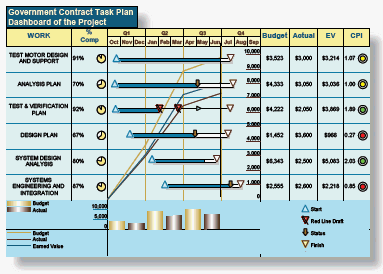
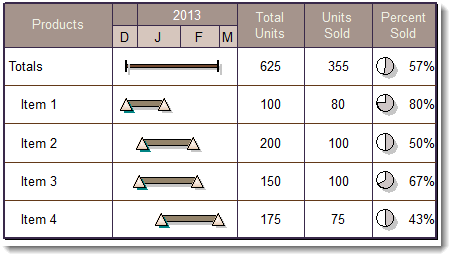
Perform mathematical (+, -, X, /) on values which are entered into columns for tasks on the schedule. Optionally display an indicator (like a stoplight or a % complete pie) for easy insight into key project metrics.
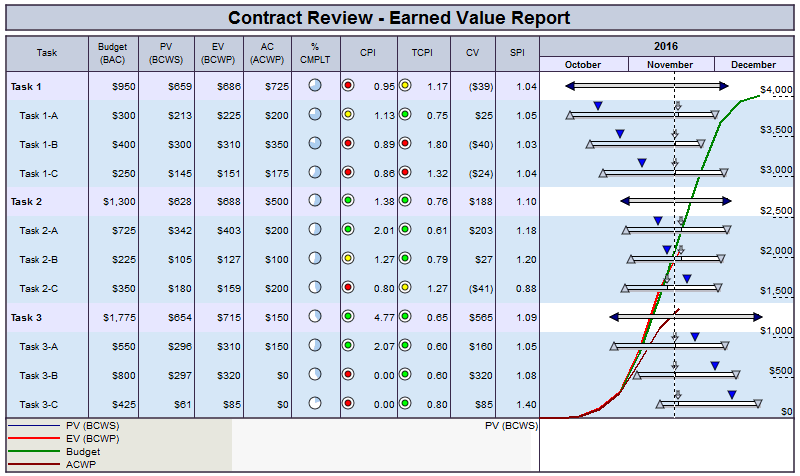
Produce reports showing Earned Value, Planned Value, Actual Costs, CPI, SPI, EAC, and EVMS fields using user-entered values, calculated values, imported values from MS Project, or a combination of these options.
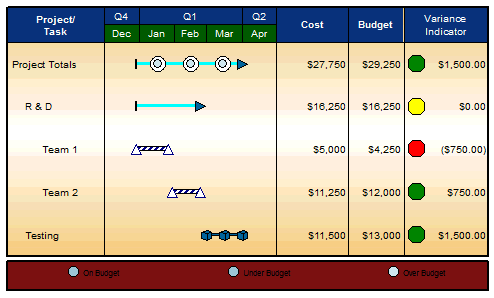
Display a wide variety of indicator symbols using a Stoplight SmartColumn. Stoplight SmartColumns offer a quick and easy method for adding stoplights, with no setup needed.
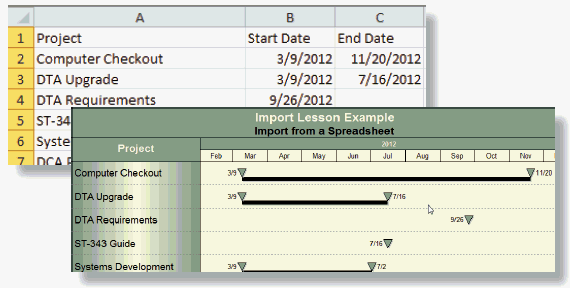
Getting schedule information into Milestones Professional from just about any other Windows software package is easy. Simply copy information from another application to the Windows clipboard, and then paste into Milestones Professional.
For example, you might import a spreadsheet like the Microsoft Excel spreadsheet
Upgrade from Milestones Simplicity to Milestones Professional. (Click the Buy link and purchase 1 Upgrade from Milestones Simplicity to Milestones Professional)

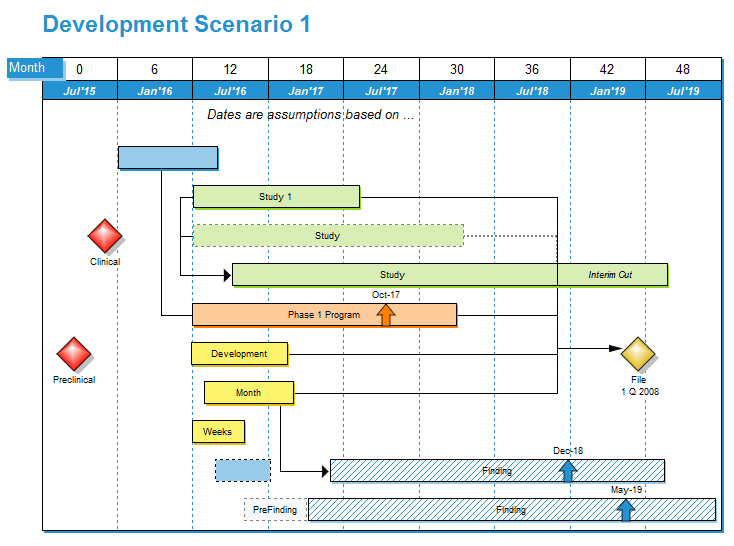
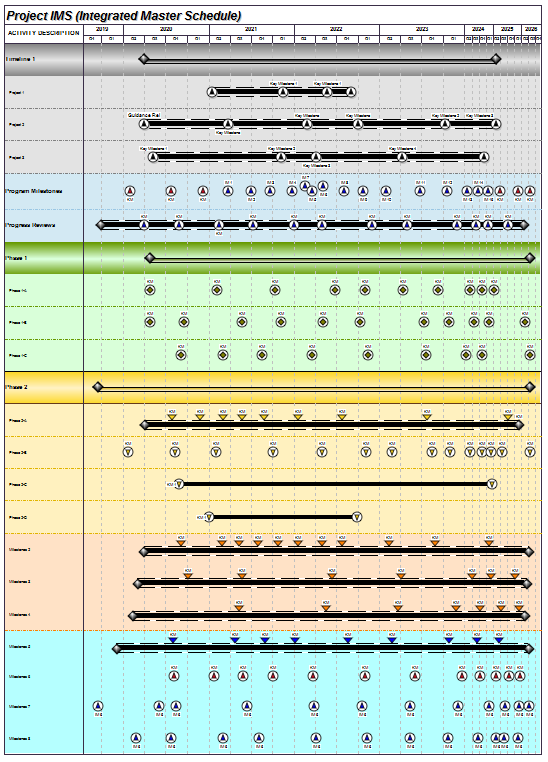
View additional examples at www.kidasa.com
Upgrade from Milestones Simplicity to Milestones Professional. (Click the Buy link and purchase 1 Upgrade from Milestones Simplicity to Milestones Professional)