-
Click
 .
. -
Click once in the column area of the task row. The entire row will highlight in black to indicate it is selected.
Click .
Click once in the column area of the task row. The entire row will highlight in black to indicate it is selected.
Click .
Click once in the column area of the first task row to be selected. The entire row will highlight in black to indicate it is selected.
Hold down the Shift key, and click once on the last task row to be selected.
Example of selecting task rows while holding down the Ctrl key on the keyboard:
Click .
Click once in the column area of the task row. The entire row will highlight in black to indicate it is selected.
Example of selecting task rows while holding down the Ctrl key on the keyboard:
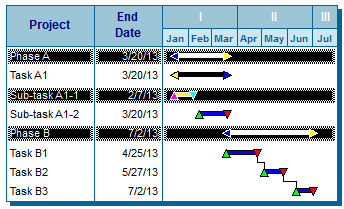
Click .
Click once in the column area for any task row on the schedule.
Press CTRL+A to select all task rows.