Built in Resource templates
|
||||||||||||||||||||||||
|
|
||||||||||||||||||||||||
Resource Summary This format uses the Microsoft Project Resource, Cost and Work fields importing that information into columns on the left and right sides of the Milestones schedule area. The import will brings into the schedule area a summary of the resources projects by showing a start symbol on the first day of the resources' projects, connecting with a horizontal bar to an end symbol depicting the last day of the resources' projects. The import uses the Cost and Work columns to set-up Type 3 ValueSets: Allocate Column Values Across Timeline. It creates a DataGraph at the bottom of the schedule showing Cost and Work. See Making changes to DataGraphs This schedule can not be saved as a custom import template. This format cannot be refreshed. |
||||||||||||||||||||||||
|
|
||||||||||||||||||||||||
Tasks By Resource
This format uses the Microsoft Project WBS, Name, Cost and Work fields importing that information into columns on the left and right sides of the Milestones schedule area. Each resource's task are grouped together. The import will brings into the schedule area each task showing a start symbol on the first day of the task connecting with a horizontal bar to an end symbol depicting the last day of the task. In the schedule area Milestones Professional draws a summary bar for each resource based on the Resources' tasks. The import uses the Cost and Work columns to set-up Type 3 ValueSets: Allocate Column Values Across Timeline. A bar DataGraph is creating, showing Cost and Work. This schedule can not be saved as a custom import template. This format cannot be refreshed. |
||||||||||||||||||||||||
|
|
||||||||||||||||||||||||
Tasks By Resource 2
This format uses the Microsoft Project Name, Resource, Work, Actual Work and Percent Complete fields importing that information into columns on the left and right sides of the Milestones schedule area. Resource brings into the schueld the task and under each task the resource responsible for that task. The import will brings into the schedule area for each resource the start date and end date of its work for that task. In the schedule area Milestones Professional draws a summary bar reflecting all the tasks' resource work. This schedule can be customized and saved as a custom template. This format cannot be refreshed. |
||||||||||||||||||||||||
|
|
||||||||||||||||||||||||
Overallocated
This format uses the Microsoft Project Name, Peak and Work fields importing that information into columns on the left and right sides of the Milestones schedule area. The import will brings into the schedule area any resource that is over allocated. In the schedule area Milestones Professional draws a summary bar reflecting all the resource's tasks. To view the detail for a particular resource on this chart, right-click the resource name and choose Expand Selected Task Row. All the resource's tasks will be listed showing a start symbol on the first day of the task connecting with a horizontal bar to an end symbol depicting the last day of the task. Allocate Column Values Across Timeline. A bar DataGraph is created showing Work. |
||||||||||||||||||||||||
|
|
||||||||||||||||||||||||
Tasks by resource detailed
This format uses the Microsoft Project Task ID, Name, Duration, Start, Finish, Percent Complete Cost and Work fields importing that information into columns on the left and right sides of the Milestones schedule area. The import will brings into the schedule area under the each of the resources their tasks showing a start symbol on the first day of the task connecting with a horizontal bar to an end symbol depicting the last day of the task. In the schedule area Milestones Professional draws a summary bar reflecting all the resource's tasks. The import uses the Cost and Work columns to set-up Type 3 ValueSets: Allocate Column Values Across Timeline. A bar DataGraph is added at the bottom of the schedule showing Cost and Work. See Making Changes to DataGraphs. This schedule can not be saved as a custom import template. This format can not be refreshed. |
||||||||||||||||||||||||
|
|
||||||||||||||||||||||||
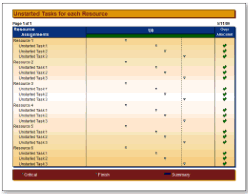
Unstarted Tasks By Resource
This Import Wizard choice produces: A list of un-started tasks for each resources, indicating (with a check) which resources are over allocated. |
||||||||||||||||||||||||
|
|
||||||||||||||||||||||||
Single Resource
During the import process the wizard offers a list of resources to select. This format uses the Microsoft Project WBS, Name, Cost and Work fields and imports that information into columns on the left and right sides of the Milestones schedule area. The import brings into the schedule area each of the chosen resource tasks showing a start symbol on the first day of the task connecting with a horizontal bar to an end symbol depicting the last day of the task. In the schedule area Milestones Professional draws a summary bar reflecting all the resource's tasks. The import uses the Cost and Work columns to set-up Type 3 ValueSets: Allocate Column Values Across Timeline. A bar DataGraph is created showing Cost and Work. See Making Changes to DataGraphs. This schedule can not be saved as a custom import template. This format cannot be refreshed. |
||||||||||||||||||||||||
|
|
||||||||||||||||||||||||
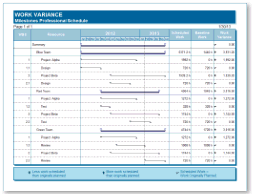
Work variance
This format uses the Microsoft Project WBS, Resources, Scheduled Work, Baseline Work, and Work Variance fields importing that information into columns on the left and right sides of the Milestones schedule area. Milestones converts the Microsoft Project Work Variance information into indicator symbols.
The import will brings into the schedule area each resources' task showing a start symbol on the first day of the task connecting with a horizontal bar to an end symbol depicting the last day of the task. This schedule can be customized and saved as a custom template. This format cannot be refreshed. |