Built in Summary templates
|
||||||||||||||||||||||||
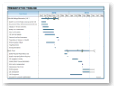
Presentation Timeline |
||||||||||||||||||||||||
|
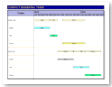
This format uses the Microsoft Project Name field and imports that information into a column on the left side of the Milestones schedule area. The import will bring into the schedule area Summary tasks Start and Finish and rolled up finish dates of their respective sub-tasks. At the lowest sub-task level Start, Finish and Milestones. This schedule can be customized and saved as a custom template. This format can be refreshed.
|
||||||||||||||||||||||||
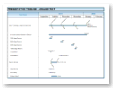
Presentation Timeline Angled Text |
||||||||||||||||||||||||
|
This format uses the Microsoft Project Name field and imports that information into a column on the left side of the Milestones schedule area. The import will bring into the schedule area Summary tasks Start and Finish and rolled up finish dates of their respective sub-tasks. At the lowest sub-task level Start, Finish and Milestones. Text associated with the Finish date will come into the Milestones schedule at an angle on the summary bar.
This schedule can be customized and saved as a custom template. This format can be refreshed.
|
||||||||||||||||||||||||
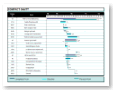
Compact Gantt |
||||||||||||||||||||||||
|
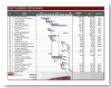
This format uses the Microsoft Project Unique ID and Name fields and imports that information into columns on the left side of the Milestones schedule area. The import will bring into the schedule area Summary tasks Start, Finish, Baseline Start, and Baseline Finish. Lower level Start, Finish, Baseline Start, and Baseline Finish. This schedule can be customized and saved as a custom template. This format can be refreshed.
|
||||||||||||||||||||||||
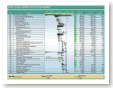
Cost Summary With Graph |
||||||||||||||||||||||||
|
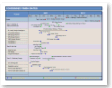
This format uses the Microsoft Project ID, Name, Baseline Cost, Cost and Resource Initials fields and imports that information into columns on the Milestones schedule. ID and Name are imported on the left side of the Milestones schedule area. Baseline Cost, Cost and Resource Initials are imported on the right side of the Milestones schedule area. The schedule is built using these Microsoft Project fields: Start, Finish, Baseline Start and Baseline Finish. The import uses the Cost and Baseline Cost columns to set-up Type 3 ValueSets: Allocate Column Values Across Timeline. Creating a bar Datagraph at the bottom of the schedule comparing Cost and Baseline Cost. The alignment for Value Set is Weekly. The graphic properties of the ValueSets and alignment can be changed using the Setup ValueSets options found on the Tools tab in Milestones. The properties of the Datagraph can be changed using the Setup Datagraph options found on the Tools tab in Milestones. This schedule can be customized and saved as a custom template. This format can be refreshed.
|
||||||||||||||||||||||||
Compact Sequential Tasks |
||||||||||||||||||||||||
|
This format uses the Microsoft Project Name field and imports that information into a column on the left side of the Milestones schedule area. Milestones brings into the schedule area start and finish dates using symbol 1 and 2 in the toolbox and horizontal bar 1. Any symbol text information is associated with the start symbol and is centered on horizontal bar. The lower level information is displayed on a summary row. This schedule can be customized and saved as a custom template. This format can be refreshed.
|
||||||||||||||||||||||||
Condensed Finish Dates |
||||||||||||||||||||||||
|
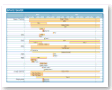
This format uses the Microsoft Project Name field and imports that information into a column on the left side of the Milestones schedule area. Milestones brings into the schedule area the start and finish dates connected with a horizontal bar. The finish dates are copied up onto the summary row in a scatter pattern to prevent overlapping as much as possible. Any Microsoft Project tasks that are critical will show red finish dates on the summary rows. This schedule can be customized and saved as a custom template. This format can be refreshed.
|
||||||||||||||||||||||||
Space Saver |
||||||||||||||||||||||||
|
The purpose of this format is to display as many tasks as possible on as few rows as possible without collision. Schedules with many dates very close together may collide, still. Increasing the width of the schedule may help spread-out the symbols. This format uses the Microsoft Project Name field and imports that information into a column on the left side of the Milestones schedule area. The import will bring into the schedule area Start date, Finish Date and Milestones. This schedule can be customized and saved as a custom template. This format can be refreshed.
|
||||||||||||||||||||||||
Top Level With Cost Plus Work |
||||||||||||||||||||||||
|
This import format is similar to Basic Gantt, with the addition of Cost and Work. The schedule is built using these Microsoft Project fields: Start, Finish, Baseline Start and Baseline Finish. The following fields are brought into columns on the left side of the schedule: ID and Name The following fields are brought into columns on the right side of the schedule: % Complete, Cost and Work This schedule can be customized and saved as a custom template. This format can be refreshed.
|
||||||||||||||||||||||||
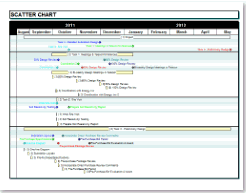
Scatter Chart |
||||||||||||||||||||||||
|
This schedule can be customized and saved as a custom template. This format can be refreshed. |
||||||||||||||||||||||||
|
|