|
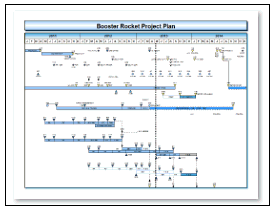
Condensing one or more large projects onto a single page is a common problem, often requiring some up-front planning. Here are some simple guidelines to make the process easier. Steps 1 through 4 are required for setup of the presentation schedule. Once steps 1 through 4 have been completed, Step 5 (Refresh) is all that is needed to keep the schedule updated.
STEP 1 - Flag the tasks in Microsoft Project
-
Microsoft Project offers 20 "Flag" fields (Flag 1 through Flag 20). Choose one of these fields.
-
In Microsoft Project, for each task to appear on the presentation schedule, set the flag to Yes.
STEP 2 - Import the flagged tasks
-
In Milestones Professional, on the Connections tab choose Create Report from Project (or Create Report from Project Server.)
-
For Only import tasks with this Flag Yes, choose the flag field established above.
-
For Tag with this ID field for future updates choose a field which will be used as a unique identifier when refreshing.
-
Choose Use a built in template.
-
Under the Milestone category, choose Finish Dates.
-
Click Next.
-
Under Finish, choose the Microsoft Project field to appear with each finish date symbol. Optionally, choose a field to appear as a symbol note.
-
Save the schedule.
STEP 3 - Rearrange tasks to fit on one page
-
On the Tools tab, choose Dates. Be sure that the Lock symbol to date when copying or moving ... is checked.
-
Move symbols by holding down the Shift key while dragging to another row.
-
STEP 4 - Beautify and save the schedule
-
Enhance the schedule using color themes, curtains, and shading.
-
Save the schedule when finished.
STEP 5 - Refresh
-
On the Connections tab, choose Refresh Previously Imported Project.
-
Choose Refresh from MPP/MPD file (or Refresh from Project Server.)
-
Choose the Microsoft Project file.
-
For Refresh Using, choose the same unique identifier used when building the schedule.
|