|
Any symbol can have a constraint placed upon it. A constraint can limit the movement of the symbol, cause a reminder dialog box to appear on a specified date, or cause a hyperlink to launch on a specified date.

Activate the Constraint selection toolbar and make selections
-
Click on a symbol which will have a constraint. This brings up the selection tab for the symbol.
-
Choose the small Constraints and Actions tab (A). This brings up the selections for constraints.
-
In the Constraint or Compare Type (B) drop-down list, choose constraint type. The various types are explained individually below.
-
Depending on the type of constraint, choose: (See instructions for individual constraint types below.)
-
Constraint or Compare Date (C): This is used for constraint types which require a date.
-
Compare text (D): Enter text used for comparison. This is required for some of the constraint types explained below.
-
Overide symbol and Override Color (F). Pick these.
-
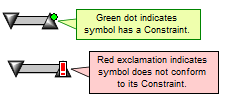
Highlight symbols with Constraints (E). When checked a small green dot is put on top of the symbol to indicate it has a constraint. 
Must be on this date
This symbol constraint alerts the user when a symbol has moved from its Must be on this date position, whether moved directly or through a dependency relationship. The alert appears as an exclamation point  overlaying the symbol. overlaying the symbol.
-
Activate the Constraint selection toolbar (see above)
-
In the Constraint or Compare Type (B) drop-down list, choose Must be on this date.
-
In the Constraint or Compare Date (C) section, specify the date for the constraint.
No later than
This symbol constraint alerts the user when a symbol has moved to an later date than its No later than date, whether moved directly or through a dependency relationship. The alert appears as an exclamation point overlaying the symbol.
-
Activate the Constraint selection toolbar (see above.)
-
In the Constraint or Compare Type (B) drop-down list, choose No later than.
-
In the Constraint or Compare Date (C) section, specify the date for the constraint.
No earlier than
This symbol constraint alerts the user when a symbol has moved to an earlier date than its No earlier than date, whether moved directly or through a dependency relationship. The alert appears as an exclamation point overlaying the symbol.
-
Activate the Constraint selection toolbar (see above.)
-
From the Constraint or Compare Type (B) drop-down list, choose No earlier than.
-
In the Constraint or Compare Date (C) section, specify the date for the constraint.
Lock to this date
This constraint prevents the symbol from being moved, either directly or as a result of any dependency. When an attempt to move the symbol is made, a friendly warning box will be displayed and the move prevented.
To change the date of a locked symbol, the Lock to this Date constraint must be removed.
-
Activate the Constraint selection toolbar (see above.)
-
From the Constraint or Compare Type (B) drop-down list, choose Lock to this Date.
-
In the Constraint or Compare Date (C) section, specify the date for the constraint.
-
Optionally, check  If checked, then Lock to Date constraints do not prevent other symbols from moving... If checked, then Lock to Date constraints do not prevent other symbols from moving...
This symbol constraint launches, on the specified date, a message box containing the text from the symbol's Notes field. The hyperlink launches when the schedule is opened and the computer's clock matches the constraint date.
Reminder
-
Activate the Constraint selection toolbar (see above.)
-
From the Constraint or Compare Type (B) drop-down list, choose Reminder: display notes on this date .
-
In the Constraint or Compare Date (C) section, specify the date on which the notes should display.
-
Click the Notes tab and enter the reminder message to be displayed.
-
Press  Apply Text Changes to add the notes to the symbol. Apply Text Changes to add the notes to the symbol.
Options after the reminder is launched:
When a reminder message box is launched via the symbol constraint, a Reminder Note dialog box appears. The components of this dialog box are as follows:
-
Displays the text from the symbol notes field.
-
Do Not Show This Reminder Again: Removes the constraint from that symbol. If not selected, then the reminder notes will continue to launch each time the schedule is opened.
-
New Reminder Date: Choose to launch the reminder again on another date.
-
Dates and Information: Lists the date on which this symbol appears; the date on which the reminder is to be launched; the computer's system date; the task row on which the symbol resides along with its location, as numbered from left to right; text from that task row, taken from the text column closest to the symbol on the left side of the schedule.
-
Go to task row: Highlights the task row containing the symbol with the reminder.
Launch first Hyperlink on this date
This symbol constraint launches, on the specified date, the hyperlink as set under that symbol's Hyperlink tab. The hyperlink launches when the schedule is opened and the computer's clock matches the constraint date.
-
Activate the Constraint selection toolbar (see above.)
-
From the Constraint or Compare Type (B) drop-down list, choose Action: launch Hyperlink on this date.
-
In the Constraint or Compare Date (C) section, specify the date for the hyperlink to be launched.
Options after the hyperlink is launched
When a hyperlink, such as a web page, is launched via the symbol constraint, a Reminder Note dialog box appears. The components of this dialog box are as follows:
-
Launched Hyperlink: Contains the URL of the hyperlink launched by the symbol constraint.
-
Below Launched Hyperlink is the text from the symbol notes field.
-
Do Not Show This Reminder Again: Removes the constraint from that symbol. If not selected, then the hyperlink will continue to launch each time the schedule is opened.
-
New Reminder Date: Choose to launch the hyperlink again on another date.
-
Dates and Information: Lists the date on which this symbol appears; the date on which the hyperlink is to be launched; the computer's system date; the task row on which the symbol resides along with its location, as numbered from left to right; text from that task row, taken from the text column closest to the symbol on the left side of the schedule.
-
Go to task row: Highlights the task row containing the symbol which launched the hyperlink.
 If multiple hyperlinks are listed for the symbol, the top-most hyperlink in the list of hyperlinks will be used for this purpose. If multiple hyperlinks are listed for the symbol, the top-most hyperlink in the list of hyperlinks will be used for this purpose.
Initialize to Current Date
The Initialize to Current Date constraint allows the user to place a symbol on the schedule which will always appear on the current date.
-
Activate the Constraint selection toolbar (see above.)
-
From the Constraint or Compare Type (B) drop-down list, choose Initialize to Current Date of Schedule.
This symbol's date is later than
If the symbol date is after the date entered any type or color change will be executed.
-
Activate the Constraint selection toolbar (see above.)
-
From the Constraint or Compare Type (B) drop-down list, choose This symbol's date is later than.
-
In the Constraint or Compare Date (C) section, specify the date.
-
Make selections for Override Shape and Override Color (F). Now, if the symbol's date is later than the constraint date, the symbol shape and color will change.
This symbol's date is later than symbol with tag
If the symbol date is after the date of the symbol with the entered symbol tag, then the symbol's color and/or shape will change based on the settings on the constraint tab (F)
-
Tag a symbol that will be used for comparison.
-
Click once on the symbol. The toolbar changes to Current Object:Symbol.
-
Click the small Symbol Links tab on the toolbar.
-
Enter a text string for Automation tag and press 
-
Click the small Constraints and Actions tab.
-
Enter the same text string entered in step 1-3 above in the Compare Text (D) field.
-
On the From the Constraint or Compare Type (B) drop-down list, choose This symbol's date is later than symbol with tag.
-
Make selections for Override Shape and Override Color(F). Now, if the symbol's date is later than the symbol with the tag, the symbol shape and color will change.
This symbol's date is later than symbol with name
If the symbol date is after the date of the symbol with the entered symbol name then any type or color change will be executed.
-
Name a symbol that will be used for comparison.
-
Click once on the symbol. The toolbar changes to Current Object:Symbol.
-
Click the small Symbol Links tab on the toolbar.
-
Enter a text string for Unique Symbol name and press
-
Click the small Constraints and Actions (A) tab.
-
Enter the same text string entered in step 1-3 above in the Compare Text (D) field.
-
On the From the Constraint or Compare Type (B) drop-down list, choose This symbol's date is later than symbol with name.
-
Make selections for Override Shape and Override Color(F). Now, if the symbol's date is later than the symbol with the name, the symbol type and color will change.
This symbol's date is earlier than
If the symbol date is before the date entered then the symbol type and color will change.
-
Activate the Constraint selection toolbar (see above.)
-
From the Constraint or Compare Type (B) drop-down list, choose This symbol's date is earlier than.
-
For Constraint or Compare Date (C) section, specify the date.
-
Make selections for Override Shape and Override Color(F). Now, if the symbol's date is earlier than the constraint date, the symbol shape and color will change.
This symbol's date is earlier than symbol with tag
If the symbol date is earlier than the date of the symbol with the entered symbol tag, then the symbol's color and/or shape will change based on the settings on the constraint tab (F)
-
Tag a symbol that will be used for comparison.
-
Click once on the symbol. The toolbar changes to Current Object:Symbol.
-
Click the small Symbol Links tab on the toolbar.
-
Enter a text string for Automation tag and press
-
Click the small Constraints and Actions (A) tab.
-
Enter the same text string entered in step 1-3 above in the Compare Text (D) field.
-
On the From the Constraint or Compare Type (B) drop-down list, choose This symbol's date is earlier than symbol with tag.
-
Make selections for Override Shape and Override Color(F). Now, if the symbol's date is earlier than the symbol with the tag, the symbol shape and color will change.
This symbol's date is earlier than symbol with name
If the symbol date is after the date of the symbol with the entered symbol name then any type or color change will be executed.
-
Name a symbol that will be used for comparison.
-
Click once on the symbol. The toolbar changes to Current Object:Symbol.
-
Click the small Symbol Links tab on the toolbar.
-
Enter a text string for Unique Symbol name and press
-
Click the small Constraints and Actions (A) tab.
-
Enter the same text string entered in step 1-3 above in the Compare Text (D) field.
-
On the From the Constraint or Compare Type (B) drop-down list, choose This symbol's date is earlier than symbol with name.
-
Make selections for Override Shape and Override Color(F). Now, if the symbol's date is earlier than the symbol with the name, the symbol shape and color will change.
Compare line with symbol, column text
For the column cell Compare options below note that columns 1-10 are on the left side of the schedule area, and columns 11-20 are on the right side of the schedule area.
If a column has a title, then it is shown in the option.
For the column cell Compare options options below, any entered date is ignored. The entered texted is searched for in the task row of the symbol in the cell in
the selected column. If the entered text is found in the cell then the symbol type and color change are executed.
-
Enter a text string (like "test1") into one of the text columns on the row that contains the symbol to have the constraint.
-
Activate the Constraint selection toolbar (see above.)
-
Enter a text string (like "test1") in the Compare Text (D) field.
-
From the Constraint or Compare Type (B) drop-down list, choose Compare line with symbol, Column n ... contains this text. Pick the constraint which corresponds to the column containing the text. Note that the symbol must be on the row with the column cell entry (step [2)
-
Make selections for Override Shape and Override Color(F). Now, if the text specified in step 3 is found in the column the symbol shape and color will change.
|