|
The column heading is the area which contains the title for a column. Up to two lines of text can be added to each column. Each heading can be easily customized:

Add column heading text
- Click once on the column heading. This will display the Selection menu.
- In the Column Heading Text section, enter a title for the column.
- Click the
 Apply Text Changes button. Apply Text Changes button.
Change the alignment for text in the column heading:
- Click once on the column heading. This will display the Selection menu.
 Apply these formatting changes to all column headings to make the following alignment changes to all column headings. Apply these formatting changes to all column headings to make the following alignment changes to all column headings.- In the Column Heading Text Display Settings section, change the Horizontal Alignment or Vertical Alignment.
Change a column heading's background color
- Click once on the column heading. This will display the Selection menu.
- In the Column Heading Text Display Settings section, make changes to background color, fading patterns, text highlights and more.
- Apply these formatting changes to all column headings to make the following background color changes to all column headings.
 A Special Effects selection causes the background to fade from the Background Color to the Background Target Color. A Special Effects selection causes the background to fade from the Background Color to the Background Target Color.  Apply these formatting changes to all column headings. Column heading formatting choices with a (*) designation can be applied to all column headings. Apply these formatting changes to all column headings. Column heading formatting choices with a (*) designation can be applied to all column headings.
Change the alignment for text in the column heading
- Click once on the column heading. This will display the Selection menu.
- Apply these formatting changes to all column headings to make the following alignment changes to all column headings.
- In the Column Heading Text Display Settings section, change the Horizontal Alignment or Vertical Alignment.
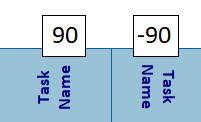
Rotate the column heading
- Click once on the column heading. This will display the Selection menu.
- From the list of rotation options, pick 90 or -90.
|