Duration SmartColumn types
|
Here are the duration SmartColumn types:
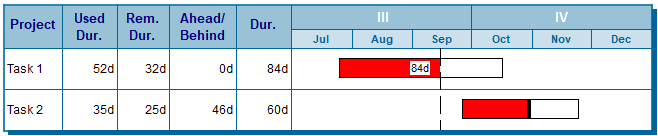
- Duration - shows the total amount of work scheduled for a task.
- Used duration- the amount of time that represents the completed portion of the task. The duration value can be shown in minutes, hours, days or weeks. Optionally, indicator symbols, text and colors can appear based on the duration values.
- Remaining duration - the amount of time that represents the uncompleted portion of the task. The duration value can be shown in minutes, hours, days or weeks. Optionally, indicator symbols, text and colors can appear based on the duration values.
- Time Ahead/Behind -displays the amount of time that the task is ahead of schedule or behind schedule, based on the current date, status date or percent complete. The ahead/behind duration value is calculated as the difference between the current date and the status date. Normally, the status date is equal to the current date.
- Baseline duration - used to show the amount of time worked according to the baseline symbols. The duration value can be shown in minutes, hours, days or weeks.
|
|
Duration settings
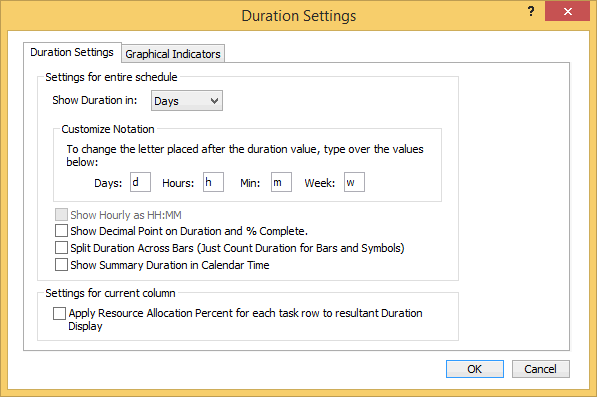 |
Duration settings are global for all duration SmartColumns (e.g., Duration, Baseline Duration, Time Ahead/Behind, Used Duration, Remaining Duration).
This format can be changed as duration SmartColumns are added, or under Layout | Other | Duration Settings.
Change duration SmartColumn settings in several areas:
- Show Duration in: Choose days, hours, minutes or weeks.
- Customize Notation: Change the letter notation next to the duration values.
 Show Hourly as HH:MM - Shows duration in hours and minutes as HH:MM. For example, 47:17 as 47 hours and 14 minutes. (Hourly and minute detail have to be turned on) Show Hourly as HH:MM - Shows duration in hours and minutes as HH:MM. For example, 47:17 as 47 hours and 14 minutes. (Hourly and minute detail have to be turned on)- Show Decimal Point on Duration and % Complete shows duration SmartColumn values with two decimal places and Percent Complete SmartColumns values with one decimal place.
- Split Duration Across Bars (Just Count Duration for Bars and Symbols) Count only the bars' and symbols' duration amounts.
 Split Duration Across Bars (Just Count Duration for Bars and Symbols) counts duration from the first symbol on the task row to the last symbol on the task row. Split Duration Across Bars (Just Count Duration for Bars and Symbols) counts duration from the first symbol on the task row to the last symbol on the task row.- Show Summary Duration in Calendar Time displays the duration of the summary bar, not the total of lower task rows' duration values.
- Apply Resource Allocation Percent for each task row to resultant Duration Display Display shows the duration value as duration [x] the resource allocation percent. For example, if the duration is 10 days and the resource allocation percent is 50%, then the displayed value will be 5 days. Note that this option does not apply to the Remaining Duration SmartColumn.
|
Factors which impact duration computation
|
|
Duration for a single milestone
-
If there is just one milestone on a row, and hourly detail is on, then the duration shown will be 0 days.
-
If there is just one milestone on a row, and hourly detail is off, then the duration shown will be 1 day.
Duration for several single milestones
-
If split duration is on, and there are several milestones on a row, the duration shown will equal the number of individual milestones. For example, if there are 6 milestones on a row, the duration will be 6 days.
-
If split duration is off and there are several milestones on a row, the duration shown will equal the difference between the date of the first normal symbol on the row and the date of the last normal symbol on the row.
Duration for several bars on a row
-
If split duration is on, and there are several bars on a row, the duration shown will total of the duration of the individual bars on the row. For example, if there are 3 bars on the row which each span 10 days, the duration for the row will be 30.
-
If split duration is off and there are several bars on a row, the duration shown will equal the difference between the date of the first normal symbol on the row and the date of the last normal symbol on the row.
|
Split duration
|
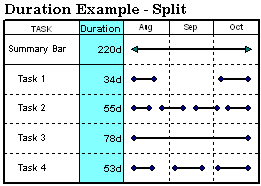
Duration for tasks can be computed two ways. The standard way is to determine the amount of time between the first date on the task row and the last date on the task row, regardless of whether there are breaks in work. Another method, "split duration," only counts the duration of symbols and task bars on the task row.
Change the way duration is computed:
-
Choose Layout | Other | Duration Settings...
-
For split duration,  Split Duration Across Bars (Just Count Duration for Bars and Symbols). Split Duration Across Bars (Just Count Duration for Bars and Symbols).
-
For standard duration, Split Duration Across Bars.
|
Example: Standard duration calculation
In the example below, duration is computed in the standard way, by computing the amount of time between the first date on the task row and the last date on the task row.

Example: Split duration calculation
In the split duration example, duration is computed by determining the time span for each task segment and adding them together. Non-working time is not included in the total duration. Notice that the schedule has the same start and end dates as the one above but the duration displayed is much different.
|
Show duration in symbol text or note using & substitutable text
|
Certain strings, preceded by an ampersand “&”, will be filled with actual numbers or text when displayed.
Use substitutable text strings as symbol text to show column text, duration, used duration, remaining duration, amount ahead/behind schedule, baseline duration, percent complete and the value of a symbol ValueSet.
For example, if "&col1" is entered in the symbol text slot, that command is replaced by the text in column 1 for that task row. If "&vs1" is entered in the symbol text slot, that command is replaced by the ValueSet 1 value for that symbol.
|
|
- &normaldur - normal duration
- &completedur - completed portion
- &remainingdur - remaining portion
- &aheadbehinddur - ahead or behind duration
- &baselinedur - baseline duration
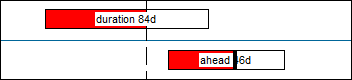
In this example,
symbol text for the start symbol of the first task is duration &normaldur.
symbol text for the second task is ahead &aheadbehinddur.
|
Example of Time ahead/behind SmartColumnExample of Time ahead/behind SmartColumn
|