|
The schedule page number can be displayed at the top left portion of the schedule or as a freeform text block anywhere on the schedule. Tutorial Lesson 1 - Format a schedule
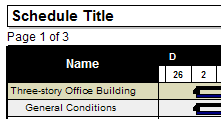
Display the page number at the top left portion of the schedule:
This is the default location for page number display.
-
Choose View | Optional Items |  Page Number. Page Number.
Customize the page numbering:
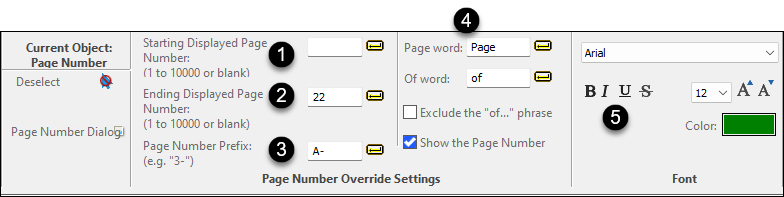
Click once on the page number at the top left portion of the schedule. This will display the Selection menu.
-
Change the Starting Displayed Page Number if the printed schedule will be included in another document and needs a specific page number.
-
Change the Ending Displayed Page Number if the printed schedule will be included in another document and needs a certain max page number (like Page 31 of 2000)
-
Change the Page Number Prefix of the schedule as needed. Any text string can be entered: Example, entering A- will result in A-1, A-2, A-3 ....
- For Page word, the default is Page but can be changed to any other word. This is useful for different languages, eliminating the word Page. Similiarly, the Of word can be changed. Exclude the "of..." phrase to shorten the page number display to just the page number. Show the Page Number or deselect it as required.
- In the Font section, set the text attributes, size and color.
The above settings will display this page number on the first page no matter how many pages are on the schedule: 
Using freeform text, the page number can be displayed anywhere on the schedule and on all pages.
-
Click  (the toolbox Text tool.) (the toolbox Text tool.)
-
Click where the page number should be shown.
-
Type a freeform text entry like This is page &curpage of a total of &maxpage pages. (use any text in combination with the &curpage and &maxpage variables).
-
Click  (the toolbox Arrow tool.) (the toolbox Arrow tool.)
-
Click once on the freeform text. This will display the Selection menu.
-
Choose Selection | Page | Show Text on All Pages.
The page number can be customized to be easily incorporated into a presentation document or report pagination. Set the starting page number, ending page number, the page number prefix, the words "Page" and "of", and more.
Use the International settings to change the words Page and of used in Page n of n:
In addition to the method described above, the word Page and of in Page 1 of 10, for example, can be changed via the International Settings.
-
Click Format | International | International, Number, and Currency Settings | Page n of n.
-
Enter the word to use for Page in the first space and the word to use for of in the second blank.
|
 Page Number