Question:
How do I remove blank lines from the bottom of my schedule? I have created a schedule with 16 lines and now need only 14. The Help says to right click on the task row and select delete - but this does not work.
Question:
I have one blank task rows above the legend that I’m unable to delete. My Rows/Page setting is 12, and I can select the rows, but the Delete Row option does not remove them. Is there another setting or condition that could be preventing the rows from being deleted?
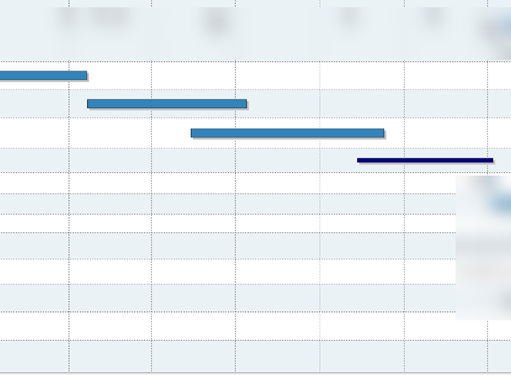
|
Answer 1:
The technique referenced in the help works for deleting tasks from a page.
However, what you want to do is change the number of task rows you have on your page. This is accomplished by doing the following:
-
Go to the Layout tab.
-
For Rows Per Page, enter 14.
Answer 2:
When rows have different heights, the extra row can stay even after you change the rows per page. Try this:
-
On the Layout tab, change Rows per Page to 13 and be sure to click Apply Setting Changes.
-
Click Reset all Rows to Default Height. All rows are now the same height, with an extra row at the bottom of the schedule.
-
Drag the bottom line of the top row down until the extra row at the bottom of the schedule is no longer visible.

|
 2023