|
This example assumes there are three files (File1.XML, File2.XMLand File3.XML) which will used to create a single schedule which will later be updated (refreshed) from the 3 Project XML files.
Step 1 - Import File 1:
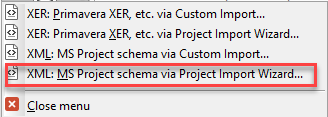
Choose Connections | Other | Import Schedule from XML file | XML: MS Project schema via Project Import Wizard..
.
-
Browse and locate the first Project XML file.
-
(The Project to Milestones wizard starts and includes these selections on the first screen). 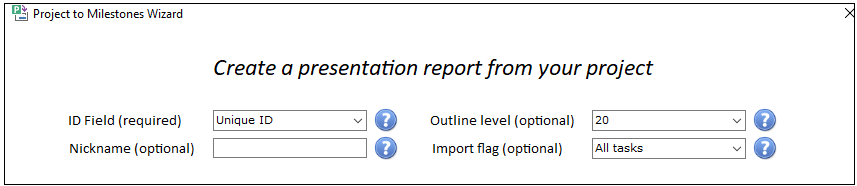
-
Use the Text field (Text 1-Text 30) which was used when the XML file was created.
-
For File nickname, enter file1.
-
Make selections in the wizard (for example Milestone: Finish Dates and press Finish to create the schedule.
-
Save the schedule as File1MilestonesSchedule.mlq.
Step 2 - Import File 2:
Choose Connections | Other | Import Schedule from XML file | XML: MS Project schema via Project Import Wizard...
-
Browse and locate the first Project XML file.
-
(The XML Project to Milestones wizard starts and includes these selections on the first screen).
-
Use the Text field (Text 1-Text 30) which was used when the XML file was created.
-
For File nickname, enter file2.
-
Make selections in the wizard (for example Milestone: Finish Dates and press Finish to create the schedule.
-
Save the schedule as File2MilestonesSchedule.mlq.
Step 3 - Import File 3:
Choose Connections | Other | Import Schedule from XML file | XML: MS Project schema via Project Import Wizard...
-
Browse and locate the first Project XML file.
-
(The XML Project to Milestones wizard starts and includes these selections on the first screen).
-
Use the Text field (Text 1-Text 30) which was used when the XML file was created.
-
For File nickname, enter file3.
-
Make selections in the wizard (for example Milestone: Finish Dates and press Finish to create the schedule.
-
Save the schedule as File3MilestonesSchedule.mlq.
Step 4 - Create a new schedule (File1File2File3Merged.
-
Open File1MilestonesSchedule.mlq.
-
Save the schedule as (File | Save As...) File1File2File3Merged.mlq.
-
On the File tab, choose the  next to Open. next to Open.
-
On the menu choose Chart to Merge.
-
Locate File2MilestonesSchedule.mlq and open it. It will now be merged in.
-
On the File tab, choose the next to Open.
-
On the menu choose Chart to Merge.
-
Locate File3MilestonesSchedule.mlq and open it.
-
Save File1File2File3Merged.mlq
Step 5 - Add a refresh list to File1File2File3Merged.mlp
-
On the Connections tab, choose the next to Refresh Previously Imported Project.
-
On the menu choose Create/Edit Refresh File List.
-
Click the Add Project XML button.
-
Browse to locate File1.xml and click Open.
-
The list now includes something like this: <File1>C:\users\username\File1.xml
-
If the nickname (the <File1> in the example above) does not say File1, then
-
Enter File1 in the Current File Nickname field.
-
Click Press to Update Nickname.
-
Browse to locate File2.xml and click Open.
-
The list now includes something like this: <File2>C:\users\username\File2.XML
-
If the nickname (the <File2> in the example above) does not say File2, then
-
Enter File2 in the Current File Nickname field.
-
Click Press to Update Nickname.
-
Repeat steps 7-9 above to add File3.XML with a nickname of file3 to the list.
Step 6
Save the File1File2File3Merged.mlq schedule.
 When a schedule is built with the Project XML to Milestones Wizard, all symbols, columns and rows are "tagged". Learn more about symbol tags. Learn more about column and task row tags. The schedule File1File2File3Merged.mlp can now be refreshed from the 3 separate Microsoft Project schedules. When a schedule is built with the Project XML to Milestones Wizard, all symbols, columns and rows are "tagged". Learn more about symbol tags. Learn more about column and task row tags. The schedule File1File2File3Merged.mlp can now be refreshed from the 3 separate Microsoft Project schedules.
To refresh:
-
Choose Connections | Refresh Previously Imported Project.
-
There will be no prompt (as there usually is) to specify a file from which to refresh. Instead the Refresh Options dialog box will specify that the schedule is being refreshed from the schedule's refresh file list.
Schedules should all be imported using the same import format (such as Milestones: Finish Dates or Gantt: Basic Gantt if they will be merged together.
|