Built in Milestone templates
|
||||||||||||||||||||||||
Date Comparison |
||||||||||||||||||||||||
|
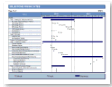
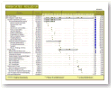
This format uses the Microsoft Project Name field and imports that information into a column on the left side of the Milestones schedule area. This format will bring into the schedule area Microsoft Project fields Start, Finish, Baseline Start, Baseline Finish, Actual Start, Actual Finish, and Deadline along with Summary Tasks. Start and Finish date will be depicted in the Milestones schedule area as a symbols. They will be drawn using symbols in the second row of the toolbox. Baseline Start and Baseline Finish will be depicted in the Milestones schedule area as a symbols. They will be drawn using the symbols in the 3rd row of the toolbox. Actual Start and Actual Finish will be depicted in the Milestones schedule area as a symbols. They will be drawn using the symbols in the 4th row of the toolbox. Summary bars use the first row of the toolbox. This schedule can be customized and saved as a custom template. This format can be refreshed.
|
||||||||||||||||||||||||
Finish Dates |
||||||||||||||||||||||||
|
The Microsoft Project Name field is imported into a column on the left side of the Milestones schedule area. This format will bring into the schedule area Microsoft Project fields Finish milestones at the lowest level and Summary tasks based on lower level tasks. Finish milestones are shown using the first symbol on row 2 of the toolbox. Summary bars use the symbols and bars found in the first row of the toolbox. Both symbols are "null" or blank symbols (type 28). Any task marked Critical in Microsoft Project will be colored red on the resulting Milestones Professional schedule. The right most symbol on row 2 of the toolbox is used for this purpose. This schedule can be customized and saved as a custom template. This format can be refreshed.
|
||||||||||||||||||||||||
Finish Dates Rolled Up |
||||||||||||||||||||||||
|
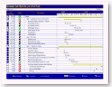
This format uses the Microsoft Project Name, Finish and Percent Complete fields and imports that information into a columns. Name and Finish import into columns on the left side and Percent Complete imports into columns on the right side of the Milestones schedule. This format will bring into the schedule area Microsoft Project fields Finish milestones at the lowest level and Summary tasks based on lower level tasks. Finish date milestones roll up to the summary bars. Finish milestones use symbol 3 in the toolbox. Summary bars use symbol 1 and symbol 2 along with horizontal bar 1 in the toolbox. Both symbols are null symbols. Any task marked Critical in Microsoft Project will be colored red on the resulting Milestones Professional schedule. Symbol 4 in the toolbox is used for critical milestones. This schedule can be customized and saved as a custom template. This format can be refreshed.
|
||||||||||||||||||||||||
Finish Dates Plus Status |
||||||||||||||||||||||||
|
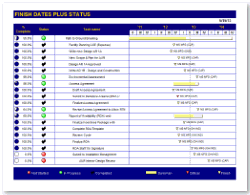
This format uses the Microsoft Project Name and Percent Complete and imports that information into separate columns on the left side of the Milestones schedule area. From Microsoft Project, Milestones brings in the numeric percent complete with a percent complete pie symbol. On the Milestones Professional schedule, the status column uses the information from the %complete column and converts it to indicators. Red circle represents task that have not started. Green circle represents task that are in progress. Black check mark represents task that are complete. This format will bring into the schedule area Microsoft Project field Finish milestones at the lowest level and Summary tasks based on lower level tasks. Finish milestones use symbol 3 in the toolbox. Summary bars use symbol 1 and symbol 2 along with horizontal bar 1 in the toolbox. Both symbols are null symbols. Any task marked Critical in Microsoft Project will be colored red on the resulting Milestones Professional schedule. Symbol 4 in the toolbox is used for critical milestones. This schedule can be customized and saved as a custom template. This format can be refreshed.
|
||||||||||||||||||||||||
Finish Variance |
||||||||||||||||||||||||
|
This format uses the Microsoft Project Name, Finish VarianceFinish Variance, Baseline Finish and finish fields and imports that information into columns. Name, and Finish VarianceFinish Variance import into columns on the left side and Baseline Finish and Finish imports into columns on the right side of the Milestones schedule. The Microsoft Project Finish Variance field displays the difference between the baseline finish date of a task and the task's current finish date. The Microsoft Project Finish Variance field displays the difference between the baseline finish date of a task and the task's current finish date. Milestones converts the Microsoft Project Finish Variance information into indicator symbols. All finish variances greater than zero is considered Ahead of Schedule and depicted by a green circle. All finish variances less than zero is considered Behind Schedule and depicted by a red circle. All finish variances equal to zero is considered On Schedule and depicted by a yellow circle.
This format will bring into the schedule area Microsoft Project fields Finish and Baseline Finish as milestones and Summary Tasks as a start date milestone, horizontal connector, end date milestone. This schedule can be customized and saved as a custom template. This format can be refreshed.
|
||||||||||||||||||||||||
Finish Variance 2 |
||||||||||||||||||||||||
|
This format uses the Microsoft Project Name, Finish, Baseline Finish, and Finish Variance fields and imports that information into columns on the schedule. Name, Finish and Baseline Finish fields are imported on the left side of the Milestones schedule area.
This format will bring into the schedule area Microsoft Project fields Finish and Baseline Finish as milestones, using the symbols in the first row of the toolbox. This schedule can be customized and saved as a custom template. This format can be refreshed.
|
||||||||||||||||||||||||
Project Report |
||||||||||||||||||||||||
|
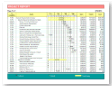
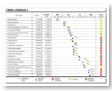
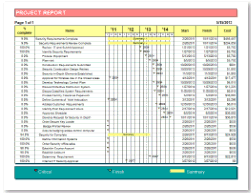
This format uses the Microsoft Project Percent Complete, Name, Start, Finish and Cost fields and imports that information into a columns. Percent Complete and Name import into columns on the left side and Start, Finish and Cost import into columns on the right side of the Milestones schedule. This format will bring into the schedule area Microsoft Project fields Finish milestones at the lowest level and Summary tasks based on lower level tasks. Finish milestones use symbol 3 in the toolbox. Summary bars use symbol 1 and symbol 2 along with horizontal bar 1 in the toolbox. Both symbols are null symbols. Any task marked Critical in Microsoft Project will be colored red on the resulting Milestones Professional schedule. Symbol 4 in the toolbox is used for critical milestones. This schedule can be customized and saved as a custom template. This format can be refreshed.
|
||||||||||||||||||||||||
Scatter Chart |
||||||||||||||||||||||||
|
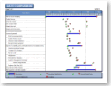
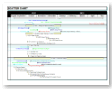
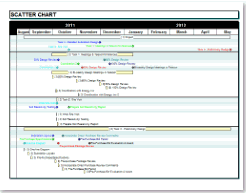
This is a summary format that brings in summary bar start and finish using the symbols and bars on row 8 of the toolbox. If the summary bars have lower level task, the task come in as finish milestones. During the import choose how many milestones to see per task row. Also, pick from several Microsoft Project fields to have symbol text associated with the milestones. Milestones colors the milestones symbol and its accompanying text the same color. Symbols 1 and 2 of the toolbox are used for the milestones. The color used for each milestone is an override ride This schedule can be customized and saved as a custom template. This format can be refreshed.
|
||||||||||||||||||||||||
Zero Duration Tasks |
||||||||||||||||||||||||
|
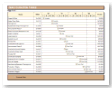
This format uses the Microsoft Project Name, WBS, and Finish fields and imports that information into a columns. Name and WBS import into columns on the left side and Finish import into columns on the right side of the Milestones schedule. This format will bring into the schedule area Microsoft Project tasks marked as milestones (milestones have zero duration). The milestone tasks will be depicted in the Milestones schedule area as a symbol. It will be drawn using the 3rd symbol in the toolbox. This schedule can be customized and saved as a custom template. This format can be refreshed. |