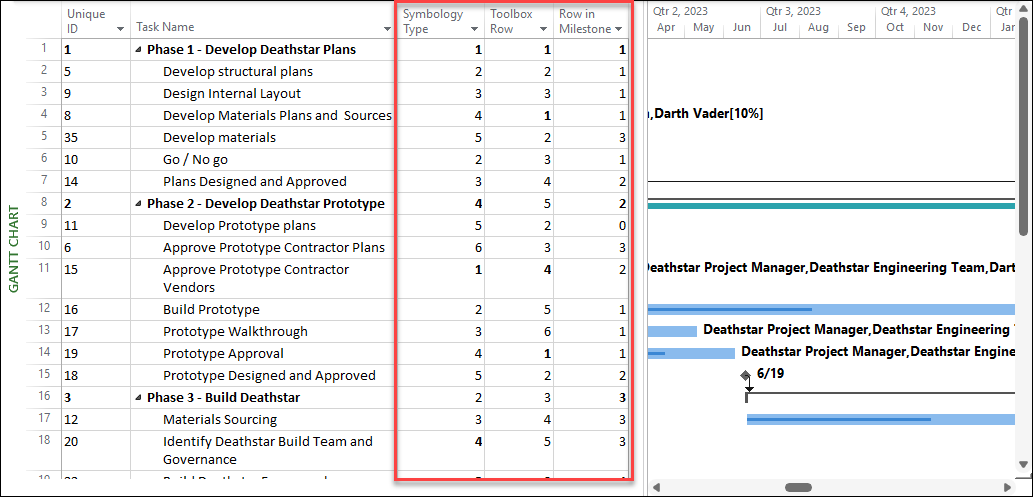
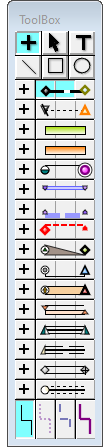
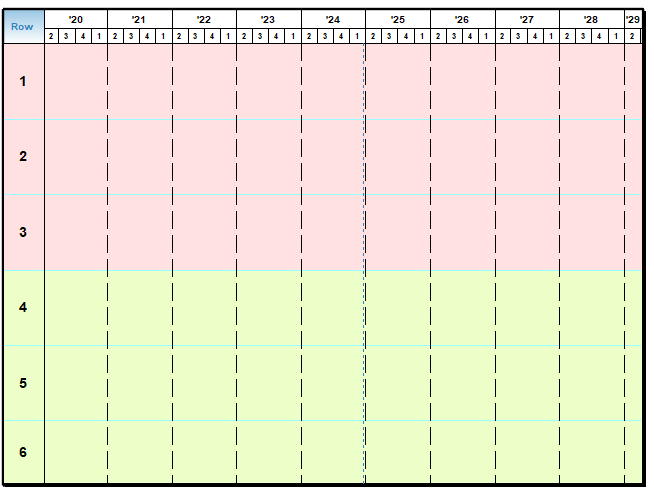
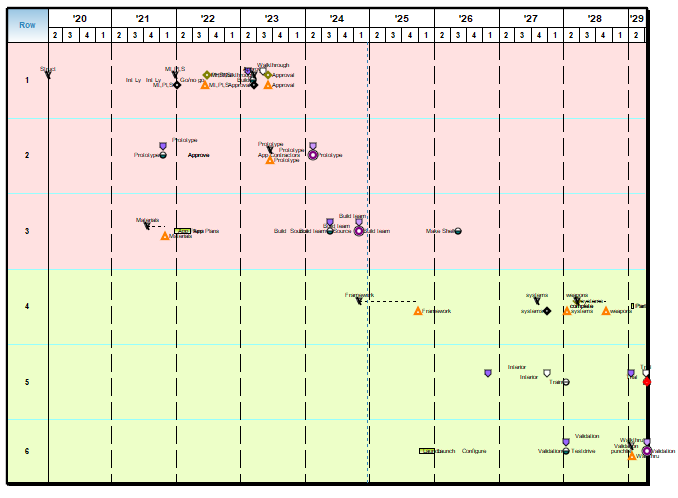
|
#
|
Description |
Example |
Status |
Symbol Text* |
|
1
|
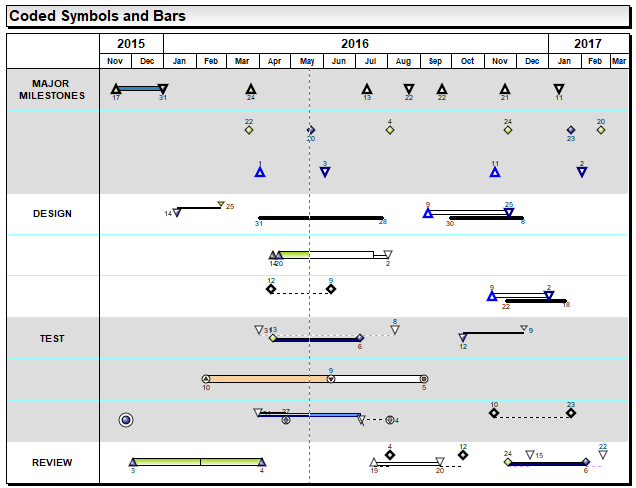
Milestone: Finish Displays Finish date as a single milestone. |
 |
Uses numeric % complete field specified or % complete. If <100%, will use after status shape and color. |
Finish text and note are added to Finish date. |
|
2
|
Milestone: Start Displays Start date as a single milestone. |
 |
Uses numeric % complete field specified or % complete If % complete=0, will use after status shape and color. Otherwise will use shape and color shown in toolbox. |
Start text and note are added to Start date. |
|
3
|
Milestones: Start and Finish Start and Finish dates are displayed as individual milestones. |
 |
Same behavior as described above for Start and Finish. |
Start text and note are added to Start date. Finish text and note are added to Finish date. |
|
4
|
Milestones: Start and Finish and Baseline Start and Finish displays Start, Finish, Baseline Start and Baseline Finish as individual milestones. Baseline symbols will use the toolbox row immediately following the toolbox row specified for Start and Finish. |
 |
Same behavior as described above for Start and Finish. |
Start text and note are added to Start date. Finish text and note are added to Finish date. |
|
5
|
Bar: Start and Finish displays the Start and Finish dates connected using the bar in the toolbox row specified |
 |
Uses numeric % complete field specified or % complete to set progress for the bar. |
Start text and note are added to Start date. Finish text and note are added to Finish date. |
|
6
|
Bar: Baseline Start and Baseline Finish displays the Baseline Start and Finish dates connected by a bar. |
 |
N/A |
Start text and note are added to Baseline Start date. Finish text and note are added to Baseline Finish date. |
|
7
|
Bar: Finish with slip displays the Finish date, connected to the Baseline Finish date |
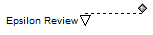 |
Uses numeric % complete field specified or % complete. If <100, Finish milestone will use after status shape and color. |
Finish text and note are added to Finish date. |
|
8
|
Bars: Start-Finish and Baseline Start-Baseline Finish Two bars are added. The first bar is the Start date connected to the Finish date using the symbols and bar in the row specified. The second bar is the Baseline Start connected to the Baseline Finish, using the symbols and bar in the row immediately below the row specified. |
 |
Uses numeric % complete field specified or % complete to set progress for the bar. |
Start text and note are added to Start and Baseline start dates. Finish text and note are added to Finish and Baseline Finish dates. |
|
9
|
Bar: Start and Finish with Status. The Start date is connected to the Status Date field specified in the wizard. Then, the second bar is drawn from Status Date to Finish date. The left-most symbol of the toolbox row specified is used for both the start and end dates. The right-most symbol is used for the status date (if a date field is used for status.) |
 |
If a numeric status field is specified (like % complete), draws the bar from start to finish using the % complete field specified. Otherwise draws two bars using status date field. |
Start text and note are added to Start date. Finish text and note are added to Finish date. |
|
10
|
Bar: Start and Finish with slips. The Start date is connected to the Finish date using symbology on the toolbox row specified. The Start date is then connected to the Baseline Start using the left-most symbol of the toolbox row immediately below the toolbox row specified. Last, the Finish date is connected to the Baseline Finish using the right-most symbol of the toolbox row immediately below the toolbox row specified. |
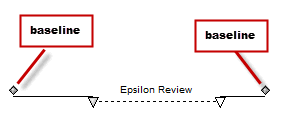 |
Uses numeric % complete field specified or % complete Start date: If % complete=0, will use after status shape and color. Otherwise will use shape and color shown in toolbox. Finish date: If <100, will use after status shape and color. |
Start text and note are added to Start and Baseline start dates. Finish text and note are added to Finish and Baseline Finish dates. |
|
11
|
Bar: Baseline Start and Baseline Finish with slips. The Baseline Start date is connected to Baseline Finish date using symbology on the toolbox row specified. The Start date is connected to the Baseline Start date using the left-most symbol of the toolbox row immediately below the toolbox row specified. The Finish date is connected to the Baseline Finish date using the right-most symbol of the toolbox row immediately below the toolbox row specified. |
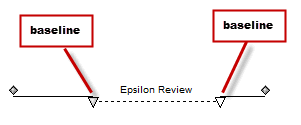 |
Uses numeric % complete field specified or % complete Start date: If % complete=0, will use after status shape and color. Otherwise will use shape and color shown in toolbox. Finish date: If <100, will use after status shape and color. |
Start text and note are added to Start and Baseline start dates. Finish text and note are added to Finish and Baseline Finish dates. |
|
12
|
Bar: Start and Finish with Status and Baseline. This is the same as #9 but will also show baseline. The Start date is connected to Status Date field specified in the wizard. Then, the second bar is drawn from Status Date to Finish date. The left-most symbol of the toolbox row specified is used for both the start and end dates. The right-most symbol is used for the status date if a date field is used for status. 11 |
 |
Uses numeric % complete field specified or % complete Start date: If % complete=0, will use after status shape and color. Otherwise will use shape and color shown in toolbox. Finish date: If <100, will use after status shape and color. |
Start text and note are added to Start and Baseline start dates. Finish text and note are added to Finish and Baseline Finish dates. |
|
13-22
|
Bar: Baseline(1-10) Start and Baseline(1-10) Finish Displays the Baseline Start and Finish dates connected by a bar. 13-Baseline1 14-Baseline2 15-Baseline3 16-Baseline4 17-Baseline5 18-Baseline6 19-Baseline7 20-Baseline8 21-Baseline9 22-Baseline10 |
|
N/A |
Start text and note are added to Baseline start dates. Finish text and note are added to Baseline Finish dates. (Baseline 1-10) |