|
Use the Internet Publishing Wizard to create an HTML document containing a picture of an outlined schedule. On this picture of the schedule that displays in the browser, click an upper level task to reveal the lower-level details. Include any hyperlinks from symbols to URLs and other non-Milestones files.
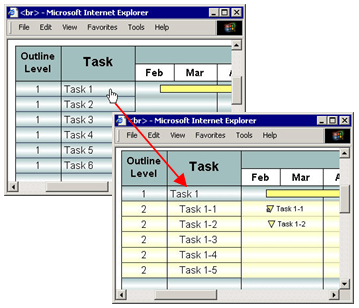
Publish a single, tiered schedule as HTML and pictures:
-
Choose File | Export Options | Internet.
-
 Tiered Hierarchy (HTML with Pictures), and then Next. Tiered Hierarchy (HTML with Pictures), and then Next.
-
Choose a Background Color, and then Next.
-
Enter a Title for the HTML page, and then Next. For no title, just key an HTML command, such as <br>.
-
Select the Bitmap Options and then Next.
-
Choose Browse to select the file name and location for the HTML and picture files. It is highly recommended that a folder is created for these numerous HTML and picture files.
-
Choose Next and Finish.
Example: Tiered Hierarchy
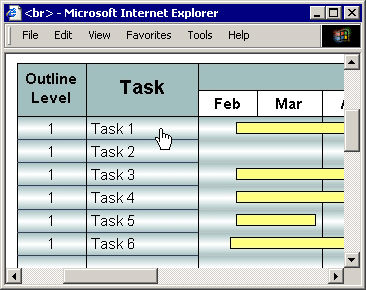
From this schedule, using the Internet Publishing Wizard, a Tiered Hierarchy HTML document was created.
Click on Task 1...
...to reveal Task 1's sub-tasks:
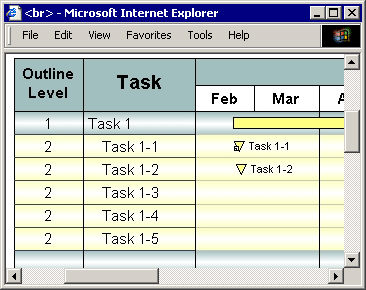
 The HTML files and picture files are named for each task's WBS number. For example, if Task 3 is clicked to see Task 3's sub-tasks, the HTML file is named 3.1.HTML and the picture of the schedule is 3.1.HTML0001.jpg. The exception is the main, rolled-up HTML page and picture, whose names come from the mlq file name. For example, the Milestones Professional schedule project.mlq would result in the main HTML page project.HTML containing a schedule picture project.html001.jpg. The HTML files and picture files are named for each task's WBS number. For example, if Task 3 is clicked to see Task 3's sub-tasks, the HTML file is named 3.1.HTML and the picture of the schedule is 3.1.HTML0001.jpg. The exception is the main, rolled-up HTML page and picture, whose names come from the mlq file name. For example, the Milestones Professional schedule project.mlq would result in the main HTML page project.HTML containing a schedule picture project.html001.jpg.
|