|
Any symbol, task row, picture or free-form text block on the schedule can have hyperlink shortcuts to other Milestones schedules, documents or Web pages. Launch a hyperlink to open the linked file or URL. With this feature, a Milestones schedule can be used as the project hub with quick links to all project related information. Tutorial Lesson 8 - Symbol Hyperlinks and Symbol Links
|
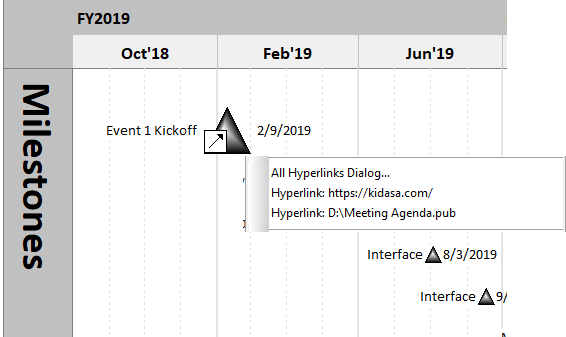
The schedule below shows only the scheduled end dates for a company’s projects. The indicator on the Event 1 Kickoff means that there are items attached. These can be other schedules, documents or Internet URL addresses. Right-clicking on a symbol with a Hyperlink indicator and then choosing a schedule, document or Internet address, opens that item.
|
|
Add a hyperlink
Add a hyperlink to a symbol
- Click
 (the toolbox Arrow tool.) (the toolbox Arrow tool.)
- Right-click the symbol on the schedule and choose Create or Update Hyperlink. The Symbol Properties dialog box appears with the Hyperlinks tab active.
- Hyperlink a file to this symbol:
- Click Add File.
- Click Files of type and select the type of file to add. Choose All Files to view all files.
- Locate and select the file to link.
- Click Open to add the file as a hyperlink.
- Hyperlink a web page or any URL to this symbol:
- Click Add URL.
- Enter the complete URL string and OK to exit.
 Highlight Symbols With Hyperlinks to attach an icon Highlight Symbols With Hyperlinks to attach an icon  to all symbols with hyperlinks. to all symbols with hyperlinks.- Include Hyperlink References When Creating HTML Files to include a numbered list of hyperlink URLs in the HTML document, when using the Internet Publishing Wizard. This setting will be overridden if Include Symbol Hyperlinks in HTML File is checked/unchecked during the Internet Publishing Wizard process.
Add a hyperlink to a task row:
- Click (the toolbox Arrow tool.)
- Click once on the task row. This will display the Selection menu.
- Choose Add File or Add URL in the Hyperlinks Settings section.
- When adding a URL just type in the URL. When adding a file, browse to the desired file.
- Optionally, Show Hyperlink icons to display an icon
 in all task rows with hyperlinks. The icon appears in the column cell on the left side of the schedule, closest to the schedule area. in all task rows with hyperlinks. The icon appears in the column cell on the left side of the schedule, closest to the schedule area.

Add a hyperlink to a picture:
- Click (the toolbox Arrow tool.)
- Click once on a picture previously added to the schedule. This will display the Selection menu.
- Next to Hyperlink: Enter the complete URL string.
- Press the
 apply button. apply button.
Add a hyperlink to a freeform text block:
- Click (the toolbox Arrow tool.)
- Click once on a freeform text block previously added to the schedule. This will display the Selection tab.
- Hyperlink a file or a Milestones schedule to the text block:
- Next to Hyperlink: Add the entire path name for the file to link.
- Press the apply button.
- Hyperlink a web page or any URL to a text block:
- Next to Hyperlink: Enter the complete URL string.
- Press the apply button.
Change or remove a hyperlink
Change or update filename strings in hyperlinks:
- Open the Milestones schedule which has hyperlinks.
- Choose Tools | Other Tools | Update Filename Links.
- In the box next to From:, input the existing text you would like to update or change.
- In the box next to To:, input the text with which you would like to replace the existing text.
- Press Update Strings in Links.
- Any filename with the existing text string found in the From box should be replaced with the text string from the To box.
Update references to previous versions of Milestones within hyperlinked files:
- Open the Milestones schedule with hyperlinks.
- Choose Tools | Other Tools | Update Filename Links.
- Press Update Filenames in Links.
- Any filename of a Milestones file (beginning with .ml) will be updated to the current extension: .mlq
Remove a hyperlink from a symbol
- Click (the toolbox Arrow tool.)
- Click once to select the symbol. This will display the Selection tab.
- On the Selection tab pick Hyperlink.
- Click Break Link.
Open an existing hyperlink
Open a symbol hyperlink
- Click (the toolbox Arrow tool.)
- Right click the symbol with the hyperlink.
- Select the file or URL.
Open a task row hyperlink
- Right click (in a column) on the task row which has a hyperlink.
- Choose Hyperlink and the file or URL.
-or-
- Click the hyperlink icon associated with the task row.
- Choose Hyperlink and the file or URL.
Open a hyperlink while in calendar view
Hyperlinks attached to symbols while in the Gantt View are carried over to the Calendar View. Note that symbols on summary rows will not display symbol hyperlinks in the Calendar View. Only symbol hyperlinks attached to symbols at the lowest outline level will appear in the Calendar View.
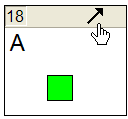
- Move the cursor to the arrow next to the calendar day, as shown above.
- Click the arrow to launch the list of hyperlinks for that day; or right-click and choose Click the arrow to launch the list of hyperlinks for that day; or right-click and choose Hyperlinks.
- Choose the hyperlink and then OK.
Report and highlight hyperlinks
View a list of schedule hyperlinks
- On the Tools tab in the Reports section, pick Schedule | Hyperlinks. You will see a list of every hyperlink on the schedule.
|