Copy selected rows to PowerPoint

Question:     

I want to copy just some task rows from my schedule to PowerPoint.  Is this possible?


Answer:

There are two ways to accomplish this.

Method 1: Copy selected rows as a bitmap

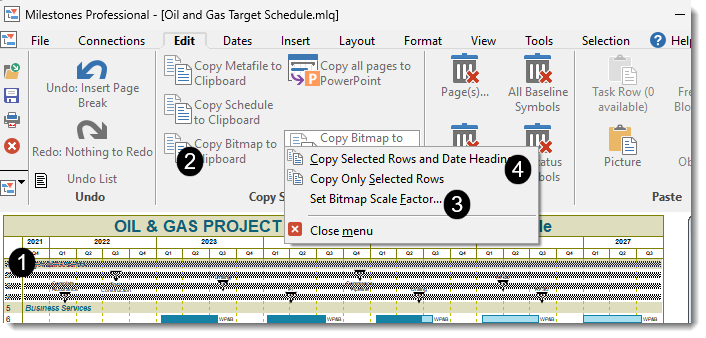
  1.  Select the row(s) to be copied.
  2. On the Edit tab, pick Copy Bitmap to Clipboard (selected Rows)
  3. If necessary, choose Bitmap Scale Factor...
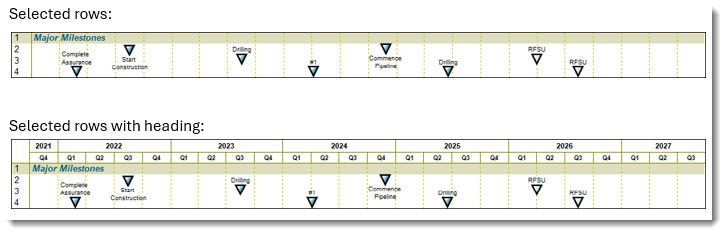
  4. Pick either Copy Selected Rows and Date Heading or Copy Only Selected Rows.
  5. Paste into PowerPoint


Method 2: Copy top rows of a schedule as a metafile

  1.  Select the task immediately under the rows to be copied.
  2. On the Insert tab, pick Break before selected row.
  3. On the Edit tab, pick Copy Metafile to Clipboard.
  4. Paste into PowerPoint.  (Note that this will include the titles and heading.)


Related topics

Paste multi-page schedules into PowerPoint

Copy all pages to PowerPoint

Trouble pasting into PowerPoint


Applies to Milestones Professional:    2023         2025


The fast easy way to schedule your projects:  Milestones Software by KIDASA Software, Inc. www.kidasa.com

Copyright © 2026 KIDASA Software, Inc. All rights reserved.