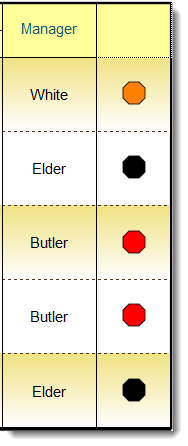
Question:I want to show a stoplight column based on text or a number in another column. Can I do this? |
Answer:
There are several ways to display indicators in Milestones Professional. The quickest and easiest is by using a Stoplight SmartColumn. Follow these steps to add one to an existing schedule. See these instructions.
However, if you want to go beyond that and make indicators appear based on text in another column, here are the steps.
Add an calculation/indicator column which shows an indicator based on another column
- On the Insert tab, in the Rows, Columns section, choose New Column.
- From the list of column types, pick Calculation/Indicator...
- The Calculation Settings dialog box is displayed.
- Pick
 Indicator only.
 - At the top of the dialog box, pick the Graphical Indicators tab.
- For Column to Compare, pick the columns which contains the values.
- Pick indicator symbology based on the following conditions:
- Pick one of the 6 conditions in the drop-down list. This brings up the Indicator Condition Settings dialog box. See the next section for how to set up the conditions. Repeat for each condition.
Set up the conditions
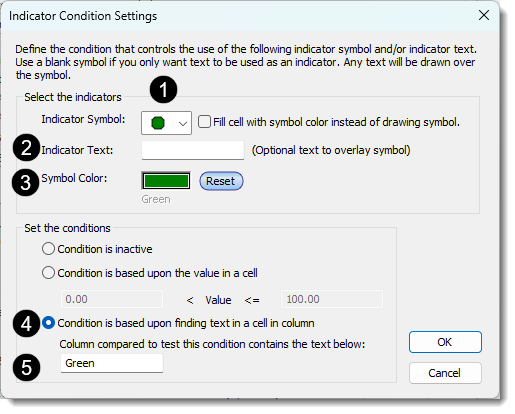
- For Indicator Symbol, pick a symbol (These are symbols which are in the current toolbox.) Optionally, choose to fill the cell with color instead of displaying a symbol.
- Optionally, display text in the column.
- Pick the symbol / fill color.
- Under Set the conditions, Condition is based on finding text in a cell in column.
- For Column compared to test this condition contains the text below: enter the text to match.
Example:
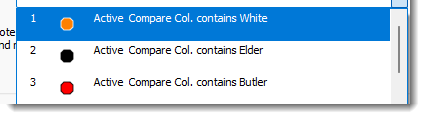
With the conditions above, the results will be like this: