Move symbol text to another location on a crowded schedule

Question:     

My schedule is so crowded that symbol text is overlapping.  I would like to drag the text to another row and have a line drawn pointing to the symbol.  Is this possible?


Answer:

Note that in versions after 2012, symbol notes are the preferred method for accomplishing this.  For versions prior to 2012, read on!

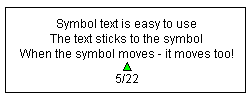
With symbol text, you can enter up to 3 lines of text with any symbol on your schedule. The example below, shows a symbol with symbol text:


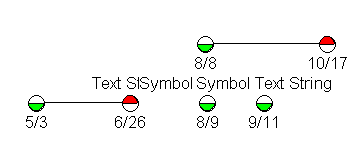
This example shows three symbols on the second row which have overlapping symbol text.  


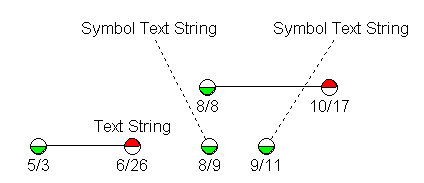
This problem is easily solved using a new technique which creates a comment symbol and vertical link with easy mouse operations.  One possible result is shown below:


  1. Click the Arrow tool in the ToolBox.

  2. On the schedule, click once on the symbol with the text.

  3. Hold down the CTRL and the T keys.

  4. Click and drag to move the symbol and its text to another task row.    


 Note:  Choose Customize | Move Symbol Text Options on the Tools menu to select the symbol and the vertical line type to be used in this case.


Related topics

Move symbol text easily

Symbol text crowded next to symbols

Work with dense schedules


Applies to Milestones Professional:    2023         2025


The fast easy way to schedule your projects:  Milestones Software by KIDASA Software, Inc. www.kidasa.com

Copyright © 2026 KIDASA Software, Inc. All rights reserved.