Build a free-form presentation schedule and update it from Primavera
|
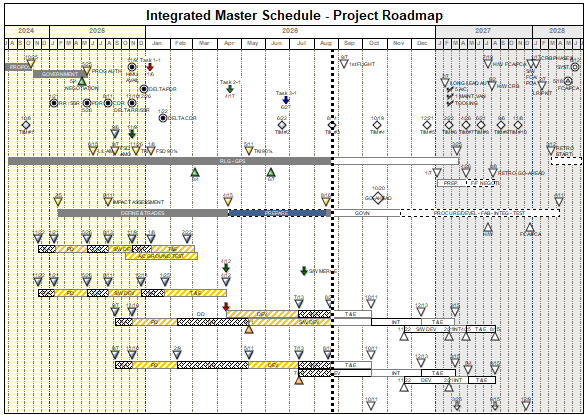
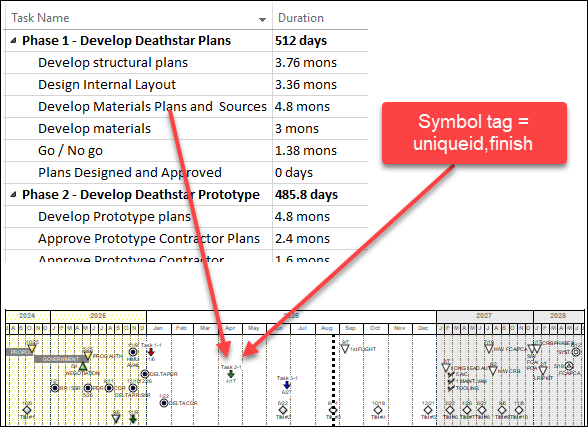
It's possible to build a schedule such as this one in Milestones. Then, symbols can be "tagged" so that they can be updated from an file exported from Primavera. Symbols are tagged with the Primavera Activity ID (exported as Text 1), followed by the name of the date field and the name of the field to be used for symbol text. Once built and tagged, "refresh" the schedule.
See Export from Primavera to see how to create an XML file which can be used with Milestones. Tag a symbol to link it to a Primavera taskTag each symbol with the corresponding unique identifier, date field, and an optional field for Symbol Text:
Tag a row to link it with a Primavera fieldTag each row of the Milestones schedule with the corresponding unique Activity ID from the Primavera file so that column values which are tagged will be updated with values from the Primavera XML file. In Milestones:
Keep the presentation schedule up-to-date with dates from PrimaveraNow that the schedule’s task rows, column headings, and symbols have been tagged, the schedule can be updated with data from the Primavera file.
|
Related Topics