Why code a schedule?
Problem: A Microsoft Project schedule might have 30,000 tasks. A one page presentation schedule is a desired result. It is desirable to be able to select individual tasks within the Microsoft Project schedule and have these individual tasks display together (on one row in the resulting Milestones presentation schedule).
Solution: Reserve a text field in the Microsoft Project schedule. Use this as the "code" field. Come up with a scheme for labelling the tasks to display (only label the tasks to display on the presentation schedule) Label the tasks. Then import into Milestones Professional. Items will be grouped by code on the resulting chart:
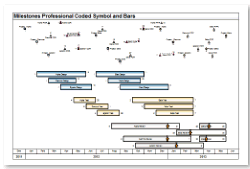 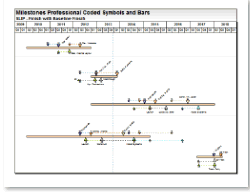 
Create a schedule from Project using a single code
The easiest formats to use are also very flexible. Just add a single code text code field to Microsoft Project. Then enter the same code for Project tasks which should be grouped.
|
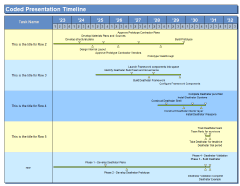
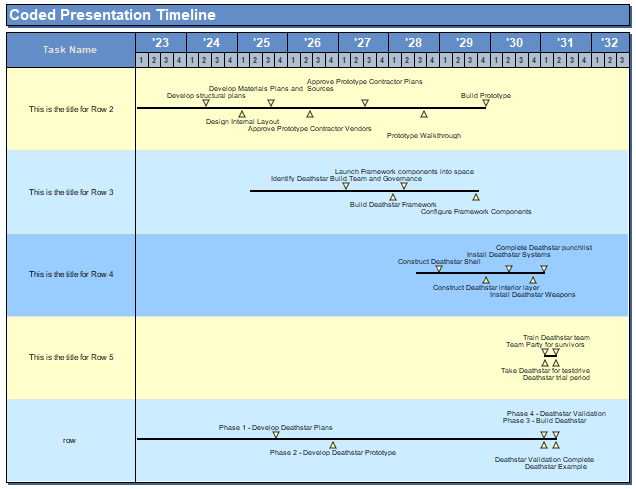
Coded Presentation Timeline and Coded Birds on a Wire
|
For both, Milestones Professional will draw a bar from the earliest date to the latest date.
For Coded Presentation Timeline, finish dates are represented both above and below the bar, alternating from the earliest date to the latest date.
For Birds on the wire, finish dates are represented by triangles above the bar only.
This format displays the finish dates grouped by code. Milestones Professional will also show the earliest start date of all the tasks in the group and the latest end date of all the task in the group as a symbol, connector, symbol.
Each grouped task can have the task rows colored the same color.
Learn more
|
|
|
|
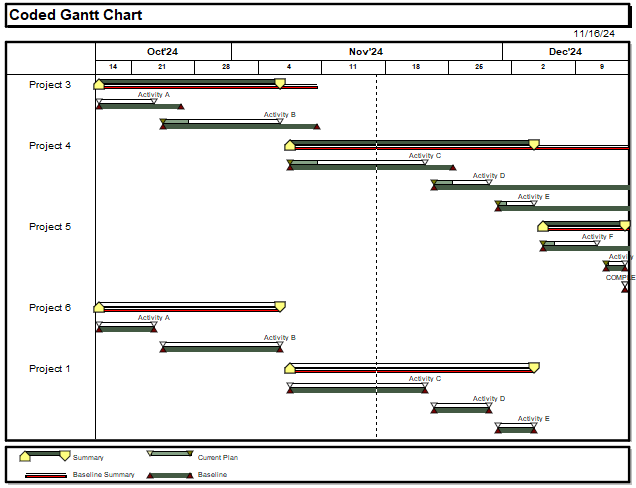
Coded Gantt Chart
|
Coded Gantt Chart dates displays the start and finish dates and summary of the start and finish dates and optionally the baseline start and baseline finish date and summary of the baseline start and baseline finish dates grouped by code.
Text from a Microsoft Project field can be associated with the finish dates.
This format can be refreshed when Microsoft Project dates change.
Learn more
|
|
|
|
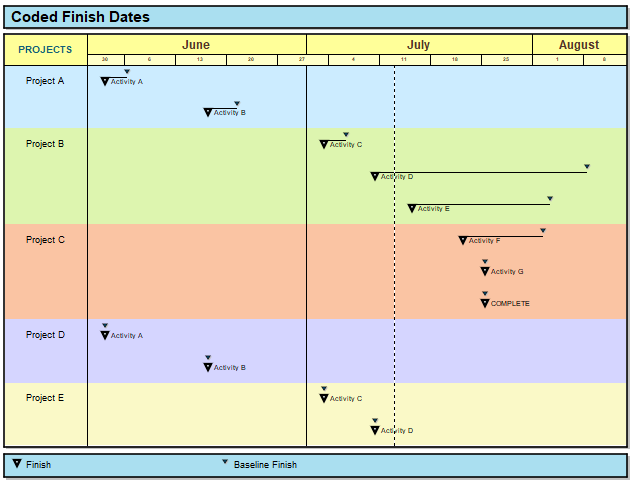
Coded Finish Dates
|
Coded finish dates displays the finish date and optionally the baseline finish date grouped by code.
Learn more
|
|
|
|
Coded Symbols With Slips
|
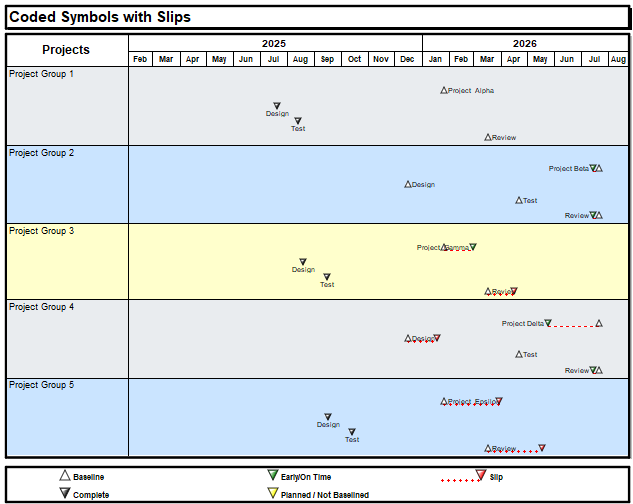
This format will display Microsoft Project tasks' finish dates and baseline finish dates with a slip bar between symbols for task that are not complete.
Learn more
|
|
|
|
Coded Gantt bars
|
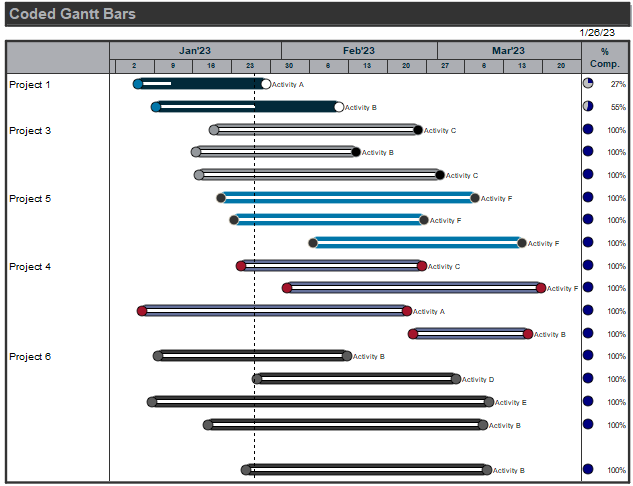
Coded Gantt Bars displays the start and finish dates for each coded task. Coded Gantt Bars does not show baseline dates or percent complete.
Instead of coloring the task rows, the individual bars are colored based on the group code.
Learn more
|
|
|
|
Dynamic Rollup
|
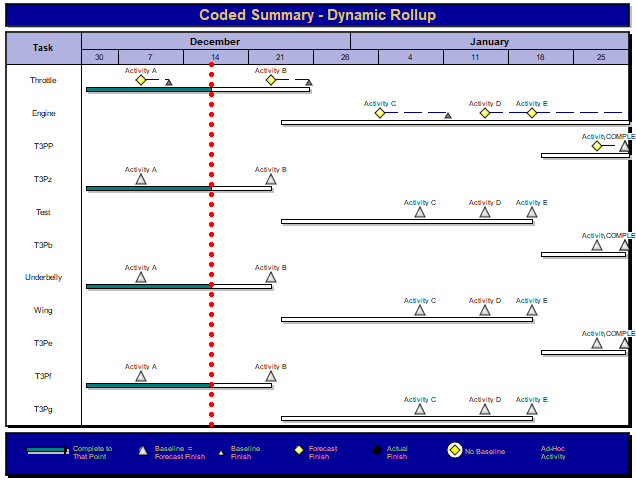
Dynamic Roll-Up offers a unique format with several options that make it easy to produce and maintain a "big-picture" chart for presentations to upper management.
Learn more
|
| |
|
Create an outlined schedule from Project with specific symbology
|
Coded Outlined
|
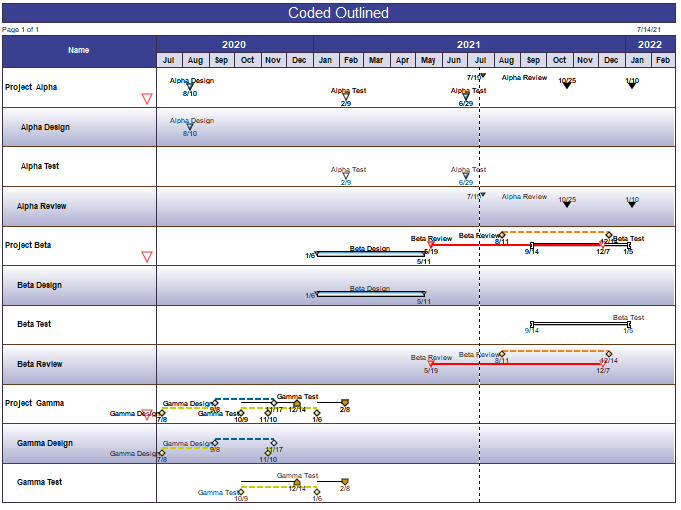
The Microsoft Project schedule is coded with 2 code fields:
-
Toolbox row (1 through 32) - the symbology to be used.
-
Symbology type (See table) If the symbology type field is set to zero or any number greater than the available symbology types (see table below), the task will not be brought in.
Learn more.
|
| |
|
Create a schedule from Project by placing tasks on specific rows with symbology set in the Project file
|
Coded Symbols and Bars
|
Coded Symbols and Bars starts with a default template, or a starter schedule (referred to as a template) provided by the user.
The Microsoft Project schedule is coded with 4-5 code fields.
-
Milestones row - the row number on the Milestone schedule on which to add the task (The real row, regardless of any swim lanes)
-
Toolbox row (1 through 32) - the symbology to be used.
-
Symbology type (See table)
-
Status Field - the field to be used for status for Symbology Type 9 (see table)
-
Title Field - (optional) the field to use to display a title for a task row. Since multiple Project tasks can be added to a single Milestones row, it is important that (if used) this field be consistent or blank. For each row, Milestones will use the last non-blank entry in the specified field as the row title. For example if 3 tasks are going to go on row #1, and Text 30 is the chosen Title Field, enter the desired title into the Text 30 field of one of the 3 tasks and leave the others blank. Note that the unique ID for the task with the title will be used to tag the task row. Using a Title field is the only way to automatically tag the task row.
Learn more.
|
| |
|
Create a schedule from Project by placing tasks on specific rows with symbology set in the wizard
|
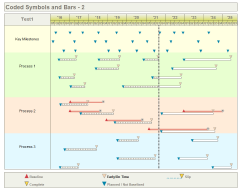
Coded Symbols and Bars 2
|
This format is similar to Coded Symbols and Bars but requires less coding.Coded Symbols and Bars 2 starts with a default template, or a starter schedule (referred to as a template) provided by the user.
In the Microsoft Project schedule, use one field for coding. This will usually be a text field. The wizard offers a way to associate each code in the text field with a row in the Milestones schedule, a type of symbology and a toolbox row.
Learn more.
|
| |
|
Create a schedule using a code field and number fields from Project
|
Coded Symbols
|
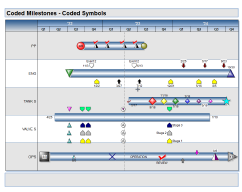
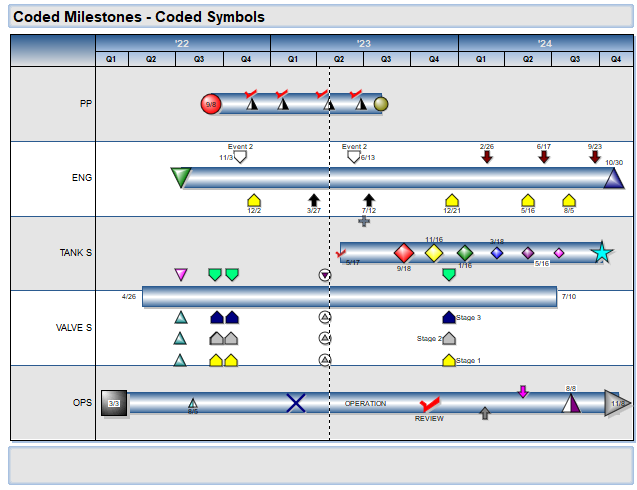
he Coded Symbols chart type makes it easy to map a Microsoft Project schedule to a presentation Milestones chart.
The technique is straightforward:
-
Set up a few Microsoft Project fields (text and number fields not otherwise being used in the Microsoft Project schedule)
-
One of the required fields is the Code field. All Microsoft Project tasks with the same entry for the Code field will be placed on the same row on the Milestones schedule.
-
Other required fields (milestone level, baseline level, actual level, symbol color, date placement and text placement) control how the information is presented.
Learn more.
|
| |
|
|