|
A Calculation/Indicator SmartColumn can multiply an existing column of values times percent NOT complete.
Multiply a column by percent NOT complete:
-
Choose Insert | Rows, Columns | New Column | Calculation/Indicator.
-
Under the Calculations tab, choose  Column times Percent Not Complete. Column times Percent Not Complete.
-
Choose the column to be multiplied by percent not complete, as shown 
-
Select other options:
-
 Do not do calculation on Summary Rows - the values will roll-up (add up) from lower levels to upper levels. Do not do calculation on Summary Rows - the values will roll-up (add up) from lower levels to upper levels.
-
Show result as a percent - the resulting calculation values are multiplied by 100, with a % sign added (e.g., .35 becomes .35 x 100 = 35%).
-
Just add a % sign after values - a % is added to the resulting calculation values (e.g., 35 becomes 35%).
-
Automatic EV BCWS calculation is based on Baseline Dates (if possible)
-
Interpret column value as a Julian date and display as a date
-
-
This setting lets the user designate that a column of numbers can be displayed as dates. For example, 4/9/2009 has a Julian value of 733500 (which is 733,500 days after the first day of year 1.) When date SmartColumns are used in calculations, they are first converted to their Julian date, so if the result is also a Julian date and the result should be displayed as a date, then use this option. Values less than 1 and more than 2,000,000 are ignored.
-
Display resultant value as a Duration. Converts values entered into duration values.
-
Treat subtraction between two date columns as a duration calculation. This setting will display the difference between two date columns as a duration value. Holidays and non-working time will be excluded from the result.
-
Choose OK.
-
Under the Column Heading tab, enter a title for the column.
-
Under the Column Formatting tab, make currency, alignment, and other selections.
Example: Multiple a column by % NOT complete
This schedule has one Values SmartColumn -- "Budget" -- and one Calculation/Indicator SmartColumn -- "Budget X % NOT Complete." The values in the "Budget" column are multiplied by the percent not complete values for each task. A Percent Complete SmartColumn is not required for this calculation.
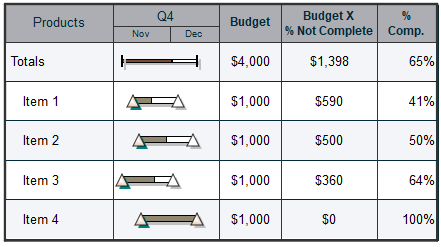
The use of status symbols is recommended for regulating percent complete.
|