Calendar view
|
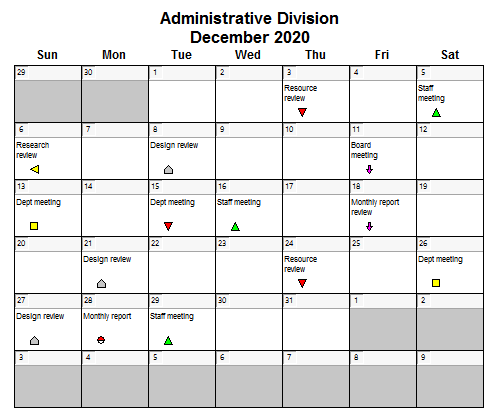
A simple Calendar view is available.
Contents Calendar view of task rowsCalendar view of symbols from all visible task rowsWith this method, symbols and symbol text will be displayed for all visible task rows, not including symbols on summary task rows. Horizontal bars and vertical links will not be displayed.
Calendar view of symbols from selected task rowsWith this method, symbols and symbol text will be displayed for all selected task rows. Horizontal bars and vertical links will not be displayed.
Calendar view of symbols and task bars from a single task rowWith this method, symbols, symbol text, and horizontal bars will be displayed for the single selected task row. Vertical links will not be displayed. See an example.
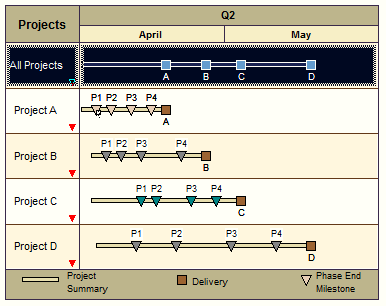
Calendar view of a summary rowA good way to produce a meaningful calendar from a project schedule is by selecting a summary bar. Select a summary task row in the Gantt View and then switch to the Calendar View to see those summary milestones and task bars in a "wall calendar" format. This is shown in the example below, in which the summary task row for All Projects is selected.
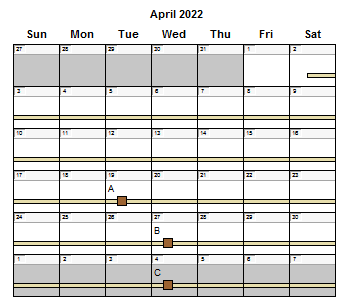
In the resulting Calendar View for All Projects, the task bar and "delivery" milestones are shown for April and the first week of May.
Change settings for Calendar ViewChange font settings for all text added in the Calendar View
Change font settings for a specific calendar date cell
Add text while in the Calendar ViewBy default, symbol text from the Gantt View appears in the Calendar View. Freeform text can be added to any date cell in the Calendar View; however, that text will not appear in the Gantt View.
Move to a different month in Calendar ViewScroll through the calendar months by using the Page Up and Page Down keys or by using the mouse wheel.
Move to the next month:Press the Page Down key or roll the mouse wheel forward/down.
Move to the previous month: Press the Page Up key or roll the mouse wheel backwards/up.
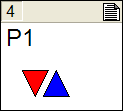
View symbol notes while in Calendar ViewText from a symbol's Symbol Notes field can be viewed in the Calendar View.
View symbol notes while in Calendar View:
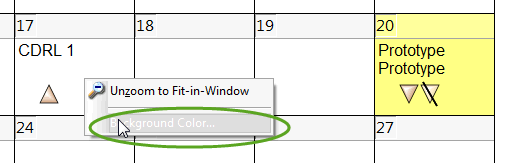
Notes: Symbols on summary rows will not display symbol notes in the Calendar View. Only symbol notes attached to symbols at the lowest outline level will appear in the Calendar View. Change background color for a day or several daysRight click a day on the calendar and choose Background Color to change the color for that day. After that, to color other days the same color, press the letter C on the keyboard and left click on the day(s).
Notes:
|
 Only symbol notes and hyperlinks attached to symbols at the lowest outline level will appear in the Calendar View.
 (
( (
(
Related Topics