Gantt views
|
A schedule can be toggled between 7 Gantt chart summary view modes.
Gantt - Normal View (this is the default view)Choose View | View Mode | Gantt - Normal View.
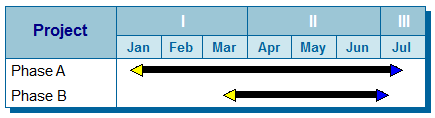
Gantt - Rolled-Up to Single Bar view:The schedule is rolled-up (collapsed) to the highest outline level and displays single summary bars. This changes the Summary Bar Settings to "Always Draw" summary bars.
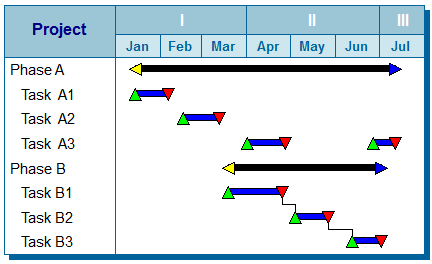
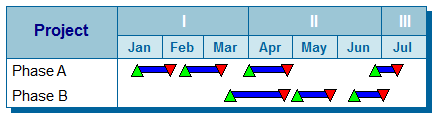
Gantt - Rolled-Up to Multiple Bars view:The schedule is rolled-up (collapsed) to the highest outline level and displays all sub-tasks' milestones and task bars. This changes the Summary Bar Settings to "Always Draw" summary bars and "Split Summary Bars using Lower Level Symbols/Bars."
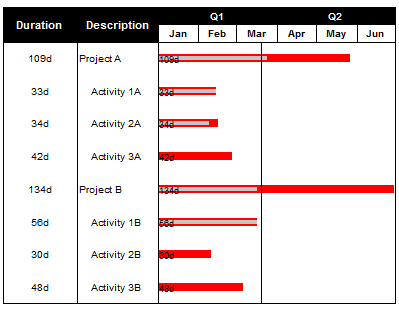
Gantt - Duration view:The Duration View mode replaces the Gantt bars and milestones with horizontal bar graphs indicating each task's duration. A bar's length corresponds to a task's duration value. The gray fill indicates the completed portion. The longest duration uses the full width of the schedule area. The duration bars do not represent start and stop dates. To display the Duration View, choose View | Viewing Options | Chart Type: (drop down menu) | Gantt - Duration View.
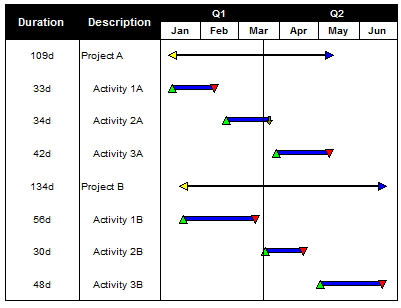
Duration view example:This schedule represents a typical Gantt view.
When switched to Duration View, each task displays a red bar and a value indicating the duration, along with a gray fill for completed duration.
|
 While in the view mode