|
The Percent Complete SmartColumn displays the completed portion of each activity as a value, based on an activity's completed duration divided by its total duration. See:Tutorial Lesson 13 - Calculation/Indicator and % Complete Columns
By default, percent complete or "progress" is based on the . A status symbol added to an task row will override the current date as the status driver.
Create a Percent Complete SmartColumn to display the percent complete value, the percent complete pie, or both.
  
Create a Percent Complete SmartColumn:
-
Choose Insert | Rows, Columns | New Column | Percent Complete.
-
The Percent Complete Settings dialog box appears. See picture:See picture:
-
 Include Percent Complete Symbol in column to display the percent complete pie. Include Percent Complete Symbol in column to display the percent complete pie.
-
Show symbol only to hide the percent complete value and display the pie, only.
-
Value and pie formatting options:Value and pie formatting options:
-
If the Percent Symbol is not the standard percent complete shape #97, the user will be prompted to change the current symbol to a Percent Complete symbol. In the case above, the green check mark in the toolbox would then be converted to symbol #97.
-
Choose a Symbol Size.
-
Choose left, right or center alignment for the pie symbol.
-
Show Decimal Point on Duration and % Complete for detailed percent complete values.
-
Summary Row Percent Complete options:Summary Row Percent Complete options:
-
Use
Earned Value method and select existing columns
which contain the EV (BCWP) Column values and Budget
Column values.
-
Choose
the More info
button for an extended explanation and additional schedule
formatting instructions.
-
Setup Percent Complete Gridlines:
-
Updating Percent Complete:Updating Percent Complete:
-
Allow
Hourly Accuracy Date/Time Settings and
Allow
Minute Accuracy Date/Time Settings to achieve more
accurate percent complete values.
-
Split
Duration Across Bars if setting the percent complete
for multiple bars on a task row.
-
Click OK.
-
Under the Column Heading tab, enter a title for the column.
Examples: Percent Complete SmartColumns
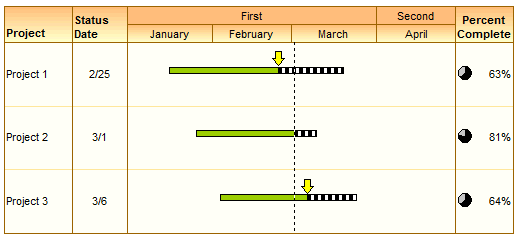
Percent Complete SmartColumn with pies and values:
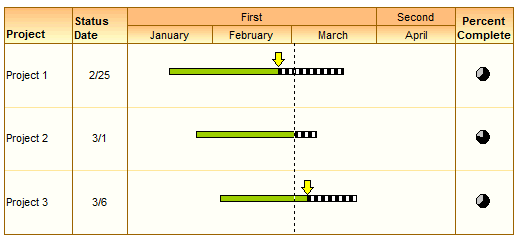
Percent Complete SmartColumn with pies, only:
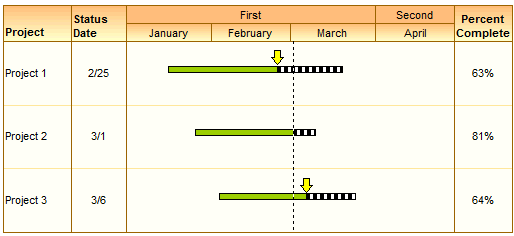
Percent Complete SmartColumn with values, only:
Example: Percent complete values and pies:
In the example below, the status symbol (here, the arrow) controls the percent complete value in the Percent Complete column. The completed milestones and completed portion of the horizontal bar are filled (to the left of the status symbol). The to-be-completed symbols and to-be-completed portion of the horizontal bars are filled with white or any color that is chosen (to the right of the status symbol). The percentage value is also displayed in pie format.

Example: Percent complete values, only:

Example: Percent complete pies, only:

|
