|
Don't like the default date format? It's easy to change. Dates can be customized for symbols, columns, and any other place a date is shown.
If you simply want to change the date order and separator used, this is possible by changing your International Date Settings (Windows Settings - Time and Language)
It's possible to use a custom date format for date SmartColumns and on symbols. Each column can have its own custom format. A single custom format applies to all symbols but individual symbols can over-ride the default setting.
Available date formats
-
-
Minute Only (e.g. 45)
-
Hour and Minute, 24 Hour Format (e.g. 13:45)
-
Hour and Minute, 12 Hour Format (e.g. 1:45)
-
Hour Only (e.g. 13)
-
Day Only (e.g. 2)
-
Month and Day (e.g. 12/23)
-
Year, Month, and Day (e.g. 12/23/21)
-
Year and Month (e.g. 12/21)
-
Month Only (e.g. 12)
-
Day from Start of Schedule (e.g. 35)
-
Minute from Start of Schedule (e.g. 3200)
-
Minute from Start of Schedule: n,nnn as nn.nn (e.g. 32.00)
-
Year only (e.g. 2020)
-
Month from Start of Schedule (e.g. 2)
-
Hour from Start of Schedule (e.g. 13)
-
Week from Start of Schedule (e.g. 12)
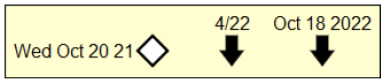
Set the date format for the symbols on the schedule:
-
-
Choose Dates | Date Related Settings | Set Symbol Date Format.
-
Choose one of the options.
-
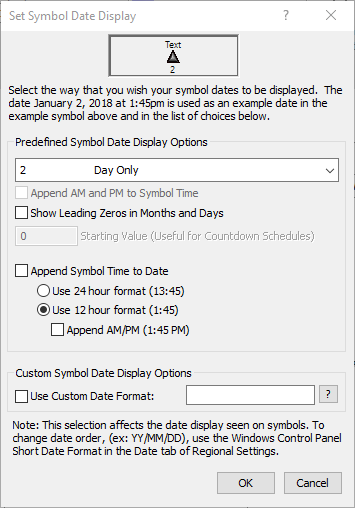
 Enter a backslash (\) after the entry to hide the date display, e.g. TBD\ Add a blank space after the prefix text or before the suffix text to provide separation between the text and the date display. If Day from Start of Schedule, Minute from Start of Schedule, or Week from Start of Schedule is selected, then the starting number can be set by entering that number in the Starting Value box. Week from Start of Schedule aligns itself with the week starting day assigned to the schedule. Enter a backslash (\) after the entry to hide the date display, e.g. TBD\ Add a blank space after the prefix text or before the suffix text to provide separation between the text and the date display. If Day from Start of Schedule, Minute from Start of Schedule, or Week from Start of Schedule is selected, then the starting number can be set by entering that number in the Starting Value box. Week from Start of Schedule aligns itself with the week starting day assigned to the schedule.
Customize the date for all symbols of a certain type (in the toolbox):
-
-
Double-click a symbol in the toolbox.
-
Enter a date format for Symbol Date Format Override:

Customize the date format for a column:
To set a column custom date format first select the column. This will display the Selection tab. In the Date SmartColumn Display Settings section, custom format the dates for the selected column.
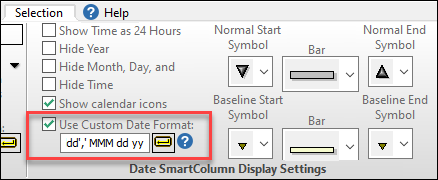
The “?” button next to the format entry box displays the rules for entering the custom format string.
To show leading zeros in the month and days (e.g. 01/01/22 instead of 1/1/22), check Show Leading Zeros in Months and Days.
Customize the date format for the current date:
Access the current date formatting options by choosing Date | Current Date | More Current Date Options . Along with the custom format, the current date now may also optionally include a time setting. If the time setting is to be used, at least Hourly sensitivity should be set in the Schedule Details dialog. . Along with the custom format, the current date now may also optionally include a time setting. If the time setting is to be used, at least Hourly sensitivity should be set in the Schedule Details dialog.

To show four digits for years, choose Tools | Program Options | Dates, then check Use 4 Digits When Displaying Years.
Customize the date for a single symbol on the schedule:
-
-
Double-click a symbol on the schedule.
-
On the Text tab, enter a date format for Symbol Date Format Override:
Add a prefix or suffix text to a symbol's date:
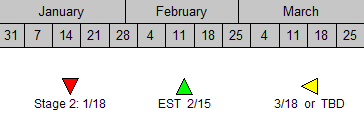
Enter any text to appear before and/or after an individual symbol's date display.
-
-
Click  (the toolbox Arrow tool.) (the toolbox Arrow tool.)
-
On the schedule, click once on a symbol. This will display the Selection menu.
-
In the Text tab, next to Date Prefix, enter up to 10 characters (lower case) to appear before the symbol date.
-
Next to Date Suffix, enter up to 10 characters (lower case) to appear after the symbol date.
Entries under Format | International will not apply to custom dates, since day and month names are maintained by Windows and are based upon the current regional settings.
|