Symbols

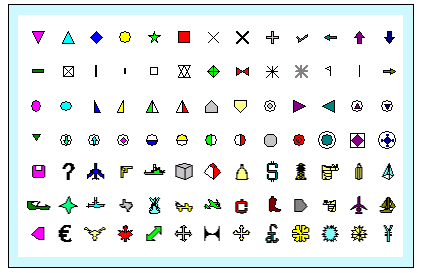
Up to 64 symbols can be shown in each schedule's toolbox. Each symbol can be customized to meet the user's scheduling needs.  In the toolbox, double-click a symbol to change it. Changes in the toolbox affect all occurrences of that symbol on the schedule.  

In this topic, learn how to:


Customize a toolbox symbol:

Customize the properties of each symbol in the toolbox.  If the symbol is already on the schedule, changing the symbol in the toolbox will change all symbols of that type which are on the schedule.

  1. In the toolbox, double-click the symbol to change.

  2. In the Symbol Options dialog box, choose the Symbol Shape tab.

  3. Scroll through the Standard Shapes to locate a shape.

  4. Click once on the shape. The Sample Symbol will reflect the selected shape.  

  5. Click OK.  Any symbols on the schedule which use that toolbox symbol will change accordingly.

Change a symbol which is on the schedule to a different toolbox symbol:
  1. With (the toolbox Arrow tool.), click the symbol on the schedule.

  2. Click once on a different symbol in the toolbox.  

Change the properties of a symbol on the schedule:
  1. With (the toolbox Arrow tool.), select the symbol on the schedule.  The toolbar changes to Current Object: Symbol.

  2. Make changes in the toolbar (above the schedule.) Note that there are many options.


Symbol Shape

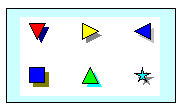
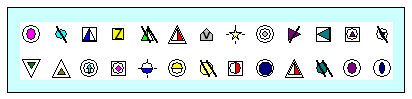
Milestones includes about 150 built-in symbol shapes.  If that isn't enough, it's possible to use any bitmap as a symbol or design one with Milestones' built-in symbol maker.


After double-clicking the symbol in the toolbox, customize the shape on the Symbol Shape tab.


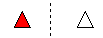
It's also possible to set up an "After status" shape.  Do this by clicking the Color/Pattern/Size/Shadow tab and picking a symbol for After Status.  In the example below, the symbol appears as a yellow triangle in the toolbox.  When added after the status date, the symbol is a red star:


3-D Look

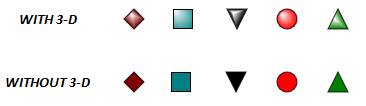
Milestones simulates a 3-D look by adding light to the upper left of the symbol.

For any toolbox symbol just  3-D Look.


Choose  Format | Frame, Highlights |  Shadows , Highlights   to apply a 3D Look to the entire schedule.


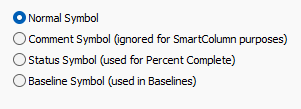
Symbol usage type (Normal, comment, status or baseline)

Choose from one of 4 symbol usage types:

  • Normal - Normal is the default symbol type.  Most symbols on the schedule will be this type.  They are typically used to mark the start and end for a task, or to represent a milestone.
  • Comment - These are ignored in any calculations and are a simple way to add text which needs to "stick" to to a task row.  Sometimes the blank symbol type is used.
  • Status - use a status symbol on a task row to quickly move the status on the task.
  • Baseline - use baseline to show a project's original plan.  Learn more.


 When a baseline, comment or status symbol is added, a small letter b, c, or s will appear near the cursor while adding the symbol.  To identify a symbol on the schedule as Normal, Baseline, Comment or Status, click the Arrow button in the toolbox. Next, click the symbol on the schedule. The status bar will show a [B], [S] or [C] letter next to the symbol's date. No letter indicates a Normal symbol.


Color, pattern and shadow

Set toolbox symbol properties:
  1. After double-clicking the symbol in the toolbox, pick the Color/Pattern/Shadow tab to customize the color.
  2. Pick an Outline Color, a Fill Color and an After Status color
  3. For a shadow,  Show Shadow on Symbol, and pick a Size.
Set Change a symbol already on the schedule:

Some, but not all, properties can be changed on the schedule.

  1. Using  (the toolbox Arrow tool), click once to select a symbol.  The toolbar changes to Current Object: Symbol.
  2. On the Size/Color tab, make changes.


  Note that when added to the schedule, the color may vary depending on status.  Symbols placed after the status date will use the "after status" color and shape.  Learn more


Letter and symbol markings


Any standard symbol can be enhanced by adding a letter marking and/or a symbol marking.  Enter a single letter or number for Letter Marking.  That letter or number will appear inside the symbol when it's added to the schedule.  

Similarly, a symbol marking is an overlay.  See the examples to the left.


Symbol date and symbol text positions and properties


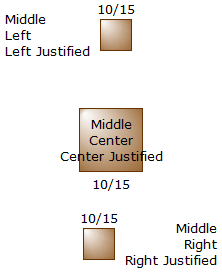
Set the default text positions for a symbol:
  1. Double click the symbol in the toolbox.

  2. Click the Text/Date Properties tab.

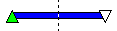
  3. Make selections for Date Placement and Text Placement.  If symbol is a start symbol, you may want to  Bar to center the text on a bar.

  4. Make selections for Date Background and Text Background.

Override text and date position for individual symbols on the schedule:
  1. Click  (the toolbox Arrow tool.

  2. Click once on the symbol on the schedule.  This will display the Selection menu.  Choose the Text tab.

  3. Under Date Placement and Text Placement make selections.

-OR-

  1. Click  (the toolbox Arrow tool.

  2. Click once to highlight a symbol on the schedule.

  3. To alter Date Placement, use ALT + Ctrl + Arrow Keys.

  4. To alter Text Placement, use ALT + Arrow Keys.

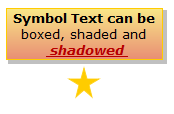
Add a shadow, shading, or a box:
  1. Click the Text/Date Properties tab.

  2. In the Text Background section, make selections.


Symbol vertical positions

Each symbol can be positioned within the row.  A total of 11 positions (levels) are available.

Change the position setting of a symbol in the toolbox:
  1. Click the Text and Date Properties tab.
  2. Under Symbol Position, click one of the 11 positions.
Change the position setting of a symbol in the toolbox:
  1. Select the symbol to be changed.
  2. Use Shift + up arrow key or Shift + down arrow key to easily alter the vertical position.

Learn more


Symbol size

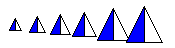
Symbol size can be set globally for all symbols, for each symbol in the toolbox, and individually for symbols already on the schedule.

Change a single symbol's size:
  1. Click  (the toolbox Arrow tool.

  2. Click once on the symbol on the schedule to change the size.  This will display the Selection menu.

  3. Click the Size/Color tab.

  4. Enter a value next to Key a size from .10 to 5.00:

  5. Press the Apply Size Change button.

Change the size of one toolbox symbol:

Each toolbox symbol can have an override symbol size. This override will apply to all symbols of this type that already exist on the schedule (optionally) and all future symbols of this type that are placed on the schedule.
 

  1. Double-click the toolbox symbol.
  2. On the Color/Pattern/Size/Shadow tab set an Override Size.

Change the global symbol size:
  1. Chose Format | Frame, Highlights | Symbol Size
  2. Select from the sizes listed or click on the Custom option to type in a custom size ranging from 0.1 to 5.0.

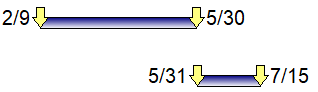
  The height of all horizontal bars is based on the global symbol size. 

Reset a symbol to the global symbol size:
    1. Click  (the toolbox Arrow tool.)

    2. Click once the symbol on the schedule to size.  This will display the Selection menu.

    3. Click the Size/Color tab.

    4. Reset symbol size to chart default.


Always on top symbols


If two close symbols have been selected in this fashion, symbols will be drawn in date order.

Designate a symbol to be on top

Designate that certain symbols are on top of other symbols. Normally symbols are drawn sequentially across a task, so that symbols on a later date will be on top of a symbol from an earlier date.

  1. Click  (the toolbox Arrow tool.
  2. In the schedule area, click once on the left-most symbol attached to the horizontal bar.  This will display the Selection menu.
  3. Click the Size/Color tab.
  4. In the Other Overrides section, Symbol is on top.

Learn more


Add and customize a symbol mark

Symbols can have marking patterns going through or around them, such as slash marks, circle enclosures, and box enclosures.  Letters can also be added.  This makes for some interesting customizations.

Customize a toolbox symbol's mark:
  1. Double-click a symbol in the toolbox to change it.

  2. In the Symbol Options dialog, select the Color/Pattern/Size/Shadow tab.

  3. Make the selections in the Marking and Mark Color boxes. The Sample Symbol on top of the dialog box will reflect selections made.

   
Customize a toolbox symbol's letter mark:
  1. Double-click a symbol in the toolbox to change it.

  2. In the Symbol Options dialog, select the Symbol Shape tab.

  3. For Letter Marking, enter a letter or number.

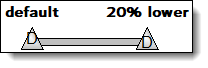
  4. Optionally, make a choice in the dropdown for Adjust Letter Position.  This will vertically adjust the letter marking to better fit the selected symbol.

  5. Set the font and size for the symbol mark by picking Symbol Mark on the Format tab.


Vertical adjustment example:


Use a symbol mark with Wingdings or other symbol fonts to create new symbols.  Instructions


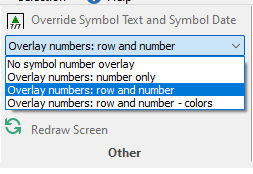
Symbol Number Overlays

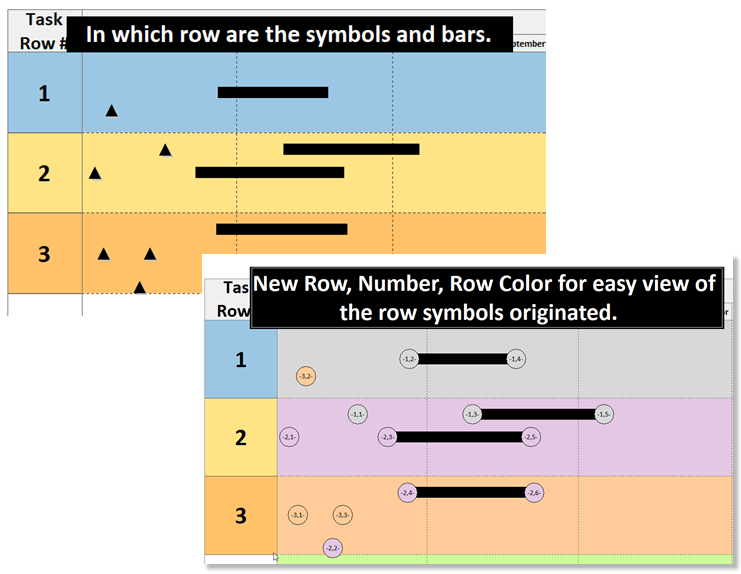
Have a very dense schedule with symbols on many levels of each task row?  Now it's easy to visually tell which actual row your symbols are on.

In the example below, it's easy to see where the symbols belong.

View | Other


Related Topics

  1. Change_one_symbol_of_one_type_to_another_type
  2. Change the size of symbol text on the schedule
  3. Custom date formats
  4. Add a bitmap symbol to the toolbox
  5. Copy and paste symbols and bars


Guided Help Home


The fast easy way to schedule your projects:  Milestones Software by KIDASA Software, Inc. www.kidasa.com

Copyright © 2025 KIDASA Software, Inc. All rights reserved.