|
One function of the Values SmartColumn is to convert user-entered values to percentage values with matching percent pies.
-
Choose Insert | Rows, Columns | New Column | Values.
-
The Indicators for Values Column appears. This is where indicators are set to appear based on the value in each column cell.
-
For Column to compare, the newly inserted column No Name Assigned should already be selected:
-
 Display numerical value also to display the percent values. Display numerical value also to display the percent values.
 Display numerical value also to display the percent pie, only. Display numerical value also to display the percent pie, only.- Align the percentage pie as a left, center, or right position in the column cell.
 Interpret value from compare column as a % and use the Percent symbol. Interpret value from compare column as a % and use the Percent symbol.- Choose a Symbol size for the pie shape.
-
If the entered values will be between 0 and 1 (for example, .35), then:
-
If the entered values will be between 0 and 100 (for example, 35), then:
-
Click OK.
-
Under the Column Heading tab, enter a title for the column.
-
Under the Column Formatting tab, make decimal, alignment, and other selections.
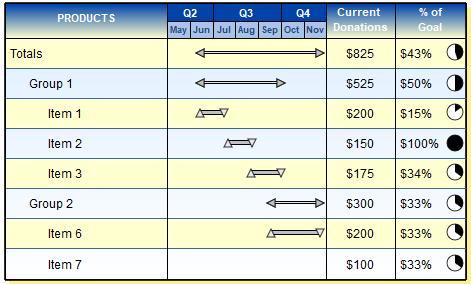
Example: Values SmartColumn with entered values that convert to % values and pies
This schedule has two Values SmartColumns -- "Current Donations" and "% of Goal." The values in both columns are user-entered values. The values in "% of Goal" are automatically converted to percent values with the percent pie. For example, the entered value .85 automatically converts to 85% with the matching percent pie. The "Totals" summary row shows an average of lower-level "% of Goal" percent values.
|