All you need to know about date headings

Date headings .... they appear above the schedule area and there are quite a few to choose from.  End of story.  Right?  Not necessarily!  Learn how to master the date headings and you have mastered a key component of your Milestones schedule.  Read on.
Date Heading choices: Date Headings appear above the schedule area (and other facts) :  
    
  • Headings can be above the schedule, below, or both.  Headings can also be attached to any task row.

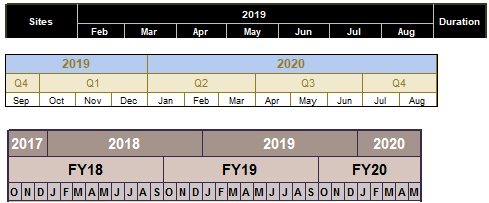
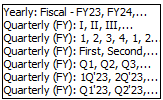
  • Choose from over 40 standard date heading styles,  ranging from years (even centuries) to minutes.

  • Compress future or past dates using logarithmic view.

  • Milestones Professional offers custom headings which extend date heading flexibility.

  • Use "Curtains" to extend the date headings into the schedule area and highlight a holiday shutdown or critical schedule period.

  • Show a day or month at a time and "scroll" horizontally through your schedule.

  • Easily change the font size, style, color and shading of each heading level.


Set up the date headings

  1. Choose the arrow tool .  Click once on the date headings within the schedule area.  This will display the Selection menu.  The Date Headings section has all the options for the date headings.

  2. Choose up to four date headings for the schedule.

  3. Choose the date heading placement.  Show at top and/or  Show at bottom.  

  4. Click the text justification buttons next to the date heading entry to control whether a date heading is justified left, right or center.

  5. In the Frequency section, enter a value to display the Heading Type at intervals. For example, a yearly heading level with a frequency of 5 means every 5 years, a monthly heading level with a frequency of 4 means every 4 months.

  6. It is often useful to start a schedule on a specific number that does not relate directly to the dates on the schedule. For example, to show a “month after contract award” heading, with the schedule starting in the fourth month after contract award, a 4 could be entered for a starting number.

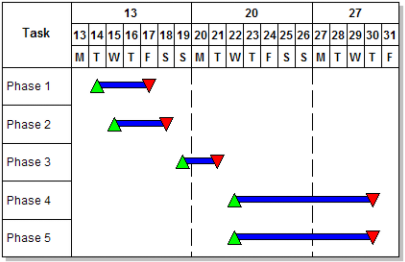
  7. Align Month Start With Week Starting Day if you want the monthly date headings to align with the week date headings.  See exampleSee example.

    It's possible to align the month starting day with the week starting day to create a sort of “fiscal month.”

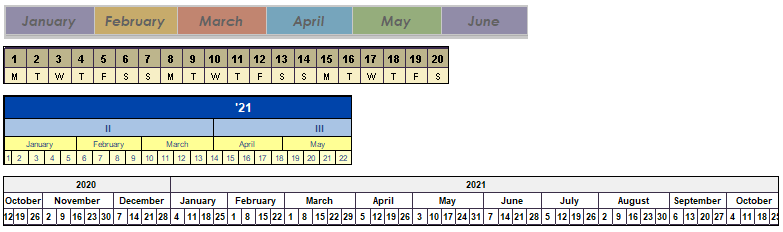
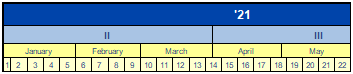
    In Picture #1, notice how the first day of the month does not line up with the monthly division lines. With Align Month Start With Week Starting Day selected, it's possible can force the weeks to align with the most appropriate months. Therefore, instead of the month division lines being drawn at the first of the month as in picture #1, they are drawn along with the first week of the month as in Picture #2.

    Picture #1

    Picture #2

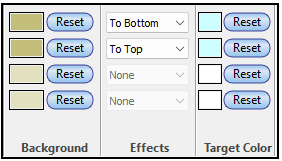
  8. In the Background, Target and Effects sections, change background color and more.   See examplesSee examples

    Add color and use special effects to enhance the backgrounds of any or all of the date headings.

    Custom headings can be used to color specific time frames.


  9. It is often useful to start a schedule on a specific number that does not relate directly to the dates on the schedule. For example, to show a “month after contract award” heading, with the schedule starting in the fourth month after contract award, a 4 could be entered for a starting number.  


Set the date range (start and end dates)
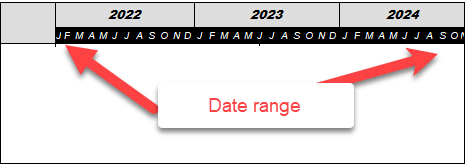
Set the schedule date range:
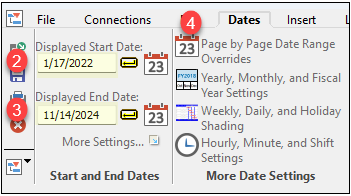
  1. Go to Dates | Start and End Dates.

  2. Enter a date for Displayed Start Date.

  3. Enter a date for Displayed End Date.
  4. To override the date range for a single page, choose Page by Page Date Range Overrides.
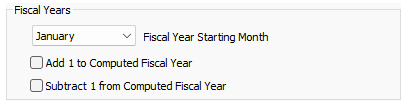
Change the Fiscal Year starting month
  1. Click Yearly, Monthly and Fiscal Year Settings.
  2. Pick a Starting month.


Compress part of the time scale using logarithmic date headings

On a schedule which covers many years, it might be beneficial to expand certain years so that more detail can be seen for those years.  

This can be accomplished by using the logarithmic view.



Attach a date heading to a task row

  1. Right-click any task row.

  2. Choose Attach Date Heading.

  3. Right-click the task row and choose Remove/Edit Date Heading to change or delete the date heading.
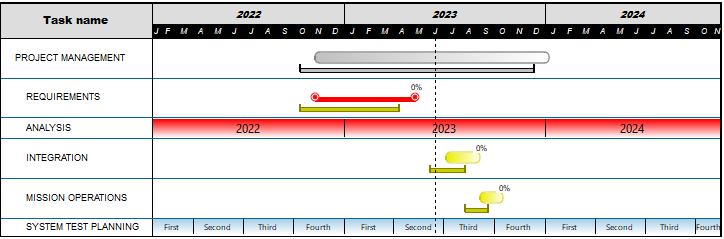

Curtains

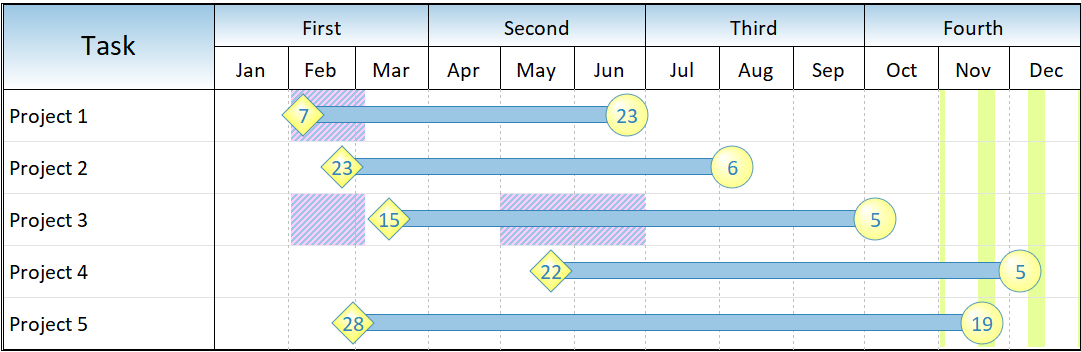
Curtains offer a way to shade any date range on a schedule. Curtains might be used to shade a critical project time span, a holiday season, every other month, or any other time period.


Each curtain appear for a set date range or repeat for a designated period, at specified intervals. the schedule can have as many curtains as needed.


Custom date headings

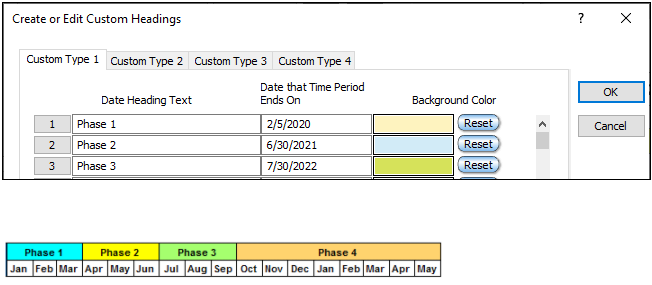
Create a custom heading:
  1. Click the date heading on the schedule once.  This will display the Selection menu.  

  2. Choose Selection |  Current Object: Date Heading | Edit Custom Headings.

  3. Choose Custom Type 1 (or any custom heading that is available for use).

  4. In the first cell under Date Heading Text, enter the first heading text (e.g. "Phase 1").

  5. Tab over to Date that Time Period Ends On, and enter the date that the first time period ends.

    Refer to the project's starting date to determine the beginning date for the first entry's time span. That is, if the project start date is 1/1/2021 and the first date entry is 2/28/2021, then the first custom heading will span from 1/1 to 2/28.

  6. Continue these steps until all dates and headings have been entered.


Learn more about custom headings


Scroll through the schedule by date

It's possible to scroll through the schedule by any number of days so that there is a  “sliding” time window.  One way is via continuous view (see below).  The other way is to scroll by date using the keyboard or toolbar.

Set the number of days to scroll by:
  1. Click Dates | Start and End Dates | More Settings.

  2. Click Yearly/Monthly/Fiscal Year Settings.

  3. Enter a value for Working days to scroll with Shift+PgUp/PgDn.


Scroll using the toolbar

Press the Scroll displayed range backward  or Scroll displayed range forward buttons in Dates | Date Range Tools.

Original:


Scroll forward by 30 days:


Scroll using the keyboard

Use Shift+PgUp to scroll backward, Shift+PgDn to scroll backward.


Set the fiscal year start month


The alignment of the fiscal and calendar years can be customized.

Set the fiscal year start month:
  1. In Dates | More Date Settings click  

  2. Pick a Fiscal year starting month.  Optionally, choose to Add or subtract a year from the displayed fiscal year.


In this example, the fiscal year starting month is October:


Change the week start day


By default, the week starting day for Milestones Professional is Sunday. It can be changed it to any day of the week.

Among other features, this setting impacts the date heading display for Week Start Day and Week End Day, and vertical gridlines separating weeks.

Change the week starting day:
  1. Choose Dates | Start and End Dates | .

  2. Select the Weekly/Daily/Holiday Shading... option.

  3. Select a day under Week Starting Day.

In this example the week starting day is Monday.


Schedule down to the minute

By default, Milestones Professional assumes that a daily level of detail. If hourly and/or minute detail is selected, the hour and/or minute is displayed when a symbol is added or moved. Also, instead of the milestone symbols being centered on the day (as in daily detail), the symbols will be placed at the hour and/or minute specified.

Turn on hourly and minute detail:

  1. In Dates | More Date Settings click  

  2. Allow Hourly Detail 

  3. For minute in addition to hourly detail, Allow Minute Detail.

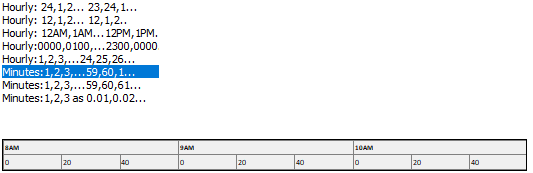
Hourly/minute heading types include military time and more:


Examples


Numbered and lettered days of the week


Logarithmic time scale:

Month names with colored curtains in the date heading


Calendar years, quarters, months and weeks


Custom Heading: Phases


 The maximum number of daily divisions in the date heading is 1798 days; monthly divisions 698 months; yearly divisions is 398 years.  Milestone Professional supports dates from the year 100 CE (A.D.) through the year 7000 CE (A.D.). For dates outside this range, use custom headings.


Gradient fills

Gradient fills allow for some interesting special effects in the date headings.  

For each date heading level (2 in the example below), pick a Background color, Effects and a Target color.


Related topics

Compress future or past dates using logarithmic view.

Set up a custom heading.

Color parts of the date headings with curtains

Attach a date heading to a task row

Logarithmic date headings

Date heading displays January, Jan, or J

Date heading divider override

Date heading increments don't fit

Date heading only shows letter on some pages

Date range override for each page