Copy a schedule page and paste as a picture into another application
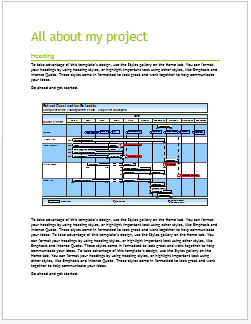 |
Copy and paste a picture of a schedule page into another program:
|
|
|
 When printing or pasting a Milestones schedule with Y-axis values, those values may print or paste differently from the values shown on the screen. The screen and printer resolution causes this. The solution is to set fixed Y-axis values.
Related Topics
|
Copy and paste a picture of a schedule page into another program:
|
|
|
Related Topics
The fast easy way to schedule your projects: Milestones Software by KIDASA Software, Inc. www.kidasa.com
Copyright © 2025 KIDASA Software, Inc. All rights reserved.