Copy schedule images to other applications

Pictures (metafiles) of Milestones schedules can easily be copied to other Windows applications.


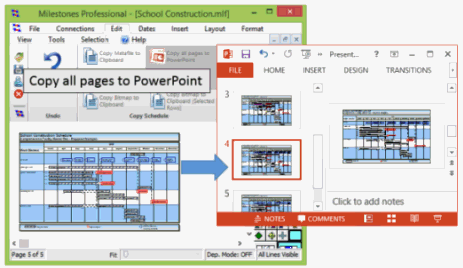
Copy all pages to PowerPoint

Choose Connections | Microsoft PowerPoint | Copy All Pages to PowerPoint.

Milestones will:

  1. Launch PowerPoint.

  2. Create a new slide for each schedule page.

  3. Create a metafile of each schedule page.

  4. Paste each metafile into each PowerPoint slide.   Learn more


Copy and paste a picture of a schedule page into another program:

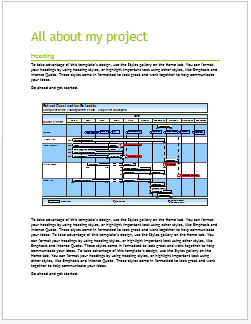
  1. While displaying the Milestones schedule page to be copied, choose Edit | Copy Schedule | Copy Metafile to Clipboard.

  2. A message appears informing that the metafile is on the clipboard.

  3. Toggle over to the other application (Word, Excel, PowerPoint, or other Windows application).

  4. Click Paste (or Paste Special). A metafile picture will appear.

  5. Repeat for other Milestones schedule pages.


Copy selected task rows to the clipboard

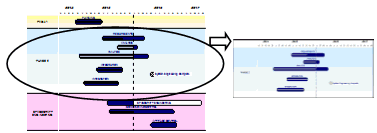
If only a few task lines are needed for use in another application, such as PowerPoint, Milestones offers an option to copy to the clipboard only those tasks which have been selected.  Choose to copy the task rows only, or the task rows with the date headings.

Learn more


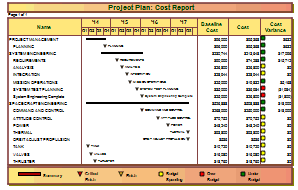
Create a bitmap image file from a schedule

Choose File| Export Options |Pictures | Export Bitmap file.

Learn more


Related Topics

  1. Copy all pages to PowerPoint
  2. Copy and paste as a picture into another application
  3. Copy bitmap to clipboard (selected task rows)
  4. Share and present schedules


Guided Help Home


The fast easy way to schedule your projects:  Milestones Software by KIDASA Software, Inc. www.kidasa.com

Copyright © 2025 KIDASA Software, Inc. All rights reserved.