Create and update links between symbols
|
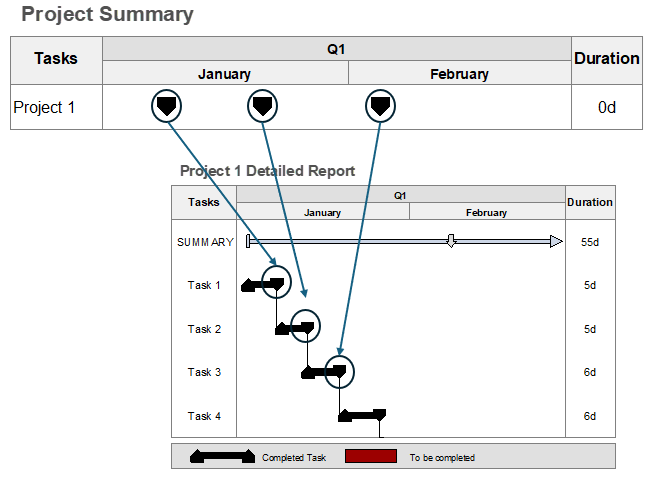
See also: Set up dependencies Work with Microsoft Project Tutorial Lesson 8 - Symbol Hyperlinks and Symbol Links With symbol linking, a symbol's date on one schedule can be based on a symbol's date on another schedule or the same schedule. Unlike simple dependencies created by joining symbols on a row or across rows, symbol linking involves a few steps, including naming the target symbol, establishing the link from the outgoing symbol to the target symbol, and updating the linked symbols. See: Tutorial Lesson 8 - Symbol Hyperlinks and Symbol Links A target symbol controls the date of a symbol whose outgoing link points to the target symbol. The symbol with the outgoing link will find the named target symbol, acquire the date of the target symbol and use that date to move a symbol to the same date. How does symbol linking work?Let's say that Symbol A in one schedule has an outgoing link to a target symbol in another schedule (or the same schedule). The target symbol has to have some identifying name, for example "Project1Start," so that the outgoing link can find it. Symbol A's outgoing link finds the named target symbol "Project1Start," gathers the date of the target symbol and uses that date to move Symbol A to the same date. Think of symbol linking in this way: John is the person in charge of maintaining a "overview" schedule at a company. John frequently have to contact people in other departments to see if they are on schedule with the tasks they have been charged with. All John need from them is one date, say the date for a hardware deliverable. Using symbol linking, John can link a symbol on an overview schedule to a named symbol on one of their schedules. Then, when John opens the schedule, he will have updated schedule information. Example 1: Symbol linking:In the example below, there are two schedules. The Project Status Overview schedule is used by top-level management to track status, dollars, and percent complete, across multiple projects. The Project 1 Detailed Report schedule is used by lower-level management to track the details of the project, including project phases, dependencies, flow, and duration. In the Project Status Overview schedule, the start date on the Project 1 task row has an outgoing link to a target symbol—the first start date (Research) in the Project 1 Detailed Report schedule. Likewise, the arrow status symbol in the Overview schedule is linked to the arrow status symbol in the Detailed schedule. Finally, the end dates are linked, as shown below. When the target symbols move in the Detailed schedule, the symbols with outgoing links in the Overview schedule move to the same date. Thus, the Detailed schedule is maintained by the project manager, while the Overview schedule is monitored by upper management. Of course, if a management system works differently, then some or all of the links can be established in the opposite direction—where the dates in the top level schedule drive the dates in the lower level schedules.
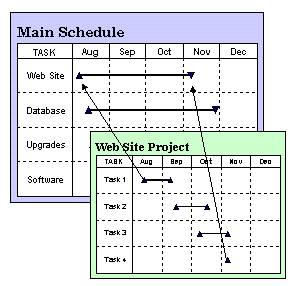
Example 2: Symbol linking:In this example, the schedule named "Main Schedule" is used to keep track of four projects. Each task row is dedicated to tracking the start and finish dates of a project. The main schedule's "Web Site" task row has an outgoing link from its start symbol to the first start symbol in the "Web Site Project" schedule. When Web Site Project's Task 1 start date changes, the start date for Web Site in the Main Schedule changes to the same date. In the same way, the Web Site task row's finish date is linked to the Task 4 finish date in the Web Site Project schedule. Thus, the Main Schedule's purpose is to track the overall progress of several sub-schedules.
Manage symbol linksName a target symbol:The date of this target symbol will drive the date of any symbol whose outgoing link points to this target symbol.
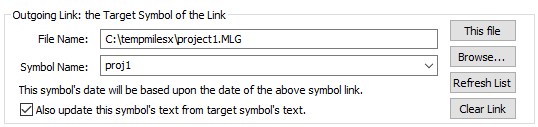
Link a symbol to a target symbol:When a target symbol's date changes, the symbol linked to the target symbol will also change to that date.
Update symbol links:To update symbol links, open the schedule containing the outgoing symbols. The update can be automatic or performed manually after the schedule is opened.
If a symbol link update fails for any of the referenced symbols, it could be that the file containing the referenced symbol no longer exists, is on a computer that is not available, the target symbol has been deleted, or the target name has been changed.
Other symbol linking options:Under the Symbol Links tab in the Options section, choose from these settings which affect all symbols in the schedule:
|
 (
(

 to all symbols involved in symbol linking, as follows:
  attaches to symbols with an outgoing link;
  attaches to symbols with a target name;
  attaches to symbols with both an outgoing link and a target name.
Related Topics