Work with large schedules
|
Milestones Professional offers unique features which make managing large projects a snap. Here's an overview of some of the ways Milestones Professional can help manage large projects. Master schedulesMerge two or more schedules into a single "master schedule." Great for reviewing the status of sub-projects maintained by others, yet overseen by one person. Learn more.
Continuous ViewJust hit the F8 key to switch to "continuous view"--a great way to work with large schedules. Learn more.
Expand/collapse for detail/summary viewsMaintain dozens of projects within one Milestones schedule by creating a hierarchy of projects, tasks, and sub-tasks (down to 20 sub-task levels). This outlined schedule can be collapsed to the project level for a summary view or expanded to the task level for a detailed view. Additional outlining options are available, including shading by outline level, flexible summary task bar display and more. Learn more.
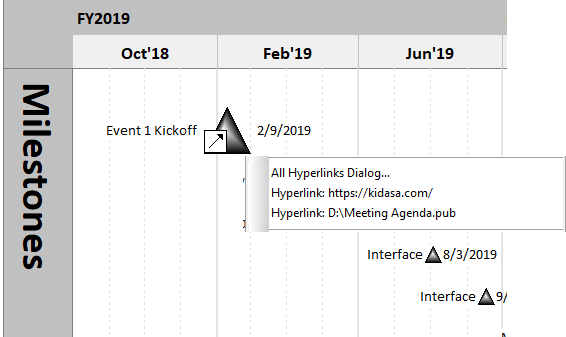
HyperlinksCreate hyperlink shortcuts from symbols or task rows to documents, web pages, and Milestones schedules. Learn more.
Internet publishingMilestones' Tiered Hierarchy Internet publishing option creates many HTML pages...the first of which is a rolled-up summary schedule. In the web browser, the user clicks on a summary row to reveal the details below. Great for management's need to see the big picture and drill-down when needed. In the example below, clicking on Task 1 reveals Task 1's details at outline level two. Learn more.
Filter tasks by date, text and moreWhen working with a large schedule, it might be nice to see only a subset of the project steps. In this example, tasks which have budgets greater that $2,500 are filtered and displayed in the second schedule, below. And, it’s easy to revert to the original, unfiltered schedule.
Sort tasks by date, text and moreMilestones Professional supports sorting by a variety of fields, including start date, end date, currency values, text, and more. Save sort settings for easy access to repetitive sorts. In this example, when sorting the WHO column alphabetically by text, it’s easy to see that Mike is overloaded during April, while Sue could take on more assignments. Learn more.
Symbol linkingSymbol linking lets the user base a symbol's date on the date of a symbol in another schedule or the same schedule. In this example, management uses the "Main Schedule" to monitor the start and end date progress of several projects, including "Web Site Project." When Task1's start date or Task 4's end date changes, those dates in the Main Schedule change accordingly because they are linked. Learn more.
|