ValueSet type 3: Allocate column values across timeline
In the Type 3 ValueSet, values are entered in a column. The values entered are then spread across each task's time span. The numbers that appear on the DataGraph represent the sum of these values for each time period. For example, if Task 1's column value is $100 and Task 1 has a 5 day duration, then $20 will be allocated to each day. See: Tutorial Lesson 11 - Introduction too ValueSets and DataGraphs and Tutorial Lesson 12 - More ValueSets and DataGraphs
Create a Type 3 ValueSet:
-
Add a Values SmartColumn to the schedule which contains the values you want to spread across each task's duration.
-
Choose Tools | Graph Options | Set Up ValueSets.
-
For Set Alignment For ValueSets, choose either Daily, Weekly, Monthly, Quarterly, or Yearly.Daily, Weekly, Monthly, Quarterly, or Yearly.
-
Choose the first available Create/Edit button to set up the new ValueSet.
-
Enter a ValueSet Name which is meaningful to you. This name will appear in the DataGraph legend next to its line/bar graph color.
-
Choose Type 3: Allocate Column Values Across Timeline.
-
Select Column: Choose the column whose values will be spread across the task bars.
-
Allocate to Current Date: Values will be spread evenly from the task's start date to the current date.
-
Allocate from Current Date: Values will be spread evenly from the current date to the task's end date.
-
Allocate using baseline symbols: Values will be allocated to task bars with baseline start and end symbols, instead of normal start and end symbols.
-
-
Choose the Graphic Properties tab:
-
ValueSet Display PropertiesValueSet Display Properties
-
-
List Numeric Values Above Graph: Values appear above DataGraph.
-
Show as Cumulative: Values appear above DataGraph as cumulative values. Learn more.
-
Graph Values: Values are converted to line or bar graphs.
-
Graph as Cumulative: Cumulative values are converted to line or bar graphs. Learn more.
-
Values Represent Currency: Add currency symbol to values. Affects ValueSet values above/below DataGraph, Y-axis values, and ValueSet values under each task row.
-
Number of Decimals to Display: Choose 0 - 6 decimal places when displaying values. Affects ValueSet values above/below DataGraph, Y-axis values, and ValueSet values under each task row.
-
Show Values Under Each Task Row: For Type 2, 3 and 4 ValueSets, only. Display values on the task row and within the appropriate time periods. Learn more.
-
Exclude Name of ValueSet in Task Row: For Type 2, 3 and 4 ValueSets, only. Hide the name of the ValueSet which will otherwise display in the column area, in line with its value on the task row. Learn more.
-
Suppress Values of Zero: To not display values of 0 (zero) above/below the DataGraph or on task row ValueSet value displays. Learn more.
-
Suppress Leading Values of Zero: For ValueSet numbers such as 0.35 to appear as .35. Learn more.
-
Show Average instead of Sum: Normally, ValueSet values are totalled by time period, then displayed above the graph and graphed as summed values. This option changes that computation to an average of values.
-
Ignore Zero values when computing average: Does not consider ValueSet values of zero when computing average.
-
-
-
Graph PropertiesGraph Properties
-
-
Line Style: For line graphs in the DataGraph, choose a thin line, dotted line, dashed line or thicker line.
-
Line/Bar Color: Choose a line color or bar fill color.
-
Bar Pattern: For bar graphs in the DataGraph, choose a pattern which fills each bar. Marbled patterns are full-colored bitmaps which will ignore any foreground or background color settings. Use of these increases the size of printer files and metafiles, especially on high-resolution printers. Thus, printing time may be increased.
-
Solid Bar Target Color: For the solid Bar Pattern, choose a Target Color for fading from the Line/Bar Color to this Target Color. For other bar patterns, the Target Color fills the white area shown in the bar pattern sample.
-
Solid Bar Effect: For the solid Bar Pattern only, choose a gradient fill pattern for fading from the Line/Bar Color to this Target Color.
-
-
-
-
Choose OK. Create or edit other ValueSets.
-
Choose OK to return to the schedule.
Example 1: Column values allocated to normal symbols, only
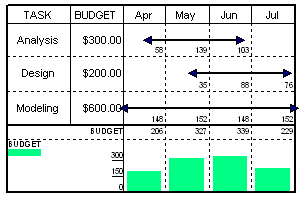
For example, in the "Analysis" task, the $300 is distributed over April, May and June. The amount for each month is based upon the total number of days in that month that are included in the time span. (Notice that the value for May is larger since it is a full month.)
The distributed values for all tasks are added up by month. The monthly totals are then displayed and graphed in the DataGraph at the bottom of the schedule.
Example 2: Column values allocated to baseline and normal symbols
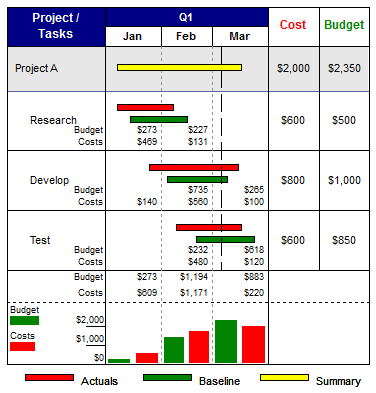
Values can be allocated to baseline task bars or normal task bars. For example, budget can be associated with baseline task bars (representing the original plan), while costs can be associated with the normal task bars (representing the current plan).
In the example below, the "Costs" ValueSet takes the "Cost" Values SmartColumn numbers and allocates them across the red task bars which use normal start and finish symbols. Cost values are also allocated only up to the current date, since costs after the current date do not exist. The "Budget" ValueSet takes the "Budget" Values SmartColumn numbers and allocates them across the green task bars which use baseline start and finish symbols.
The "Research" activity has a Cost value of $600. That amount is spread evenly across Research's red task bar, representing the actual start and end dates. "Research" has a Budget value of $500. That amount is spread evenly across Research's green task bar, representing the baseline start and end dates.
The distributed values for all tasks are added up by month. The monthly totals are then displayed and graphed in the DataGraph at the bottom of the schedule. In the example, the values are displayed as non-cumulative and graphed as cumulative.
 To edit an existing ValueSet or add another ValueSet, right-click the DataGraph and choose Create or Edit ValueSets. Set the currency display format under Format | International | International, Number, and Currency Settings.
Related Topics
- Add ValueSets to a DataGraph
- Create and format ValueSets
- ValueSet type 1: Keyed-in global values
- ValueSet type 2: Sum of values keyed into task rows
- ValueSet type 5: Total of other ValueSets
- ValueSet Properties
- ValueSet SmartColumn
- ValueSet type 4: Use values from symbols
- ValueSets - Display values below individual task rows