Add text and pictures

Milestones Professional offers many options for adding text and graphics to your schedules.    See Tutorial Lesson 3 - Work with Text


What you want:

Use this:


name or explain a step (task) in the schedule

column text

a title at the top or bottom of the schedule

title  

a short explanation for a key milestone or task

symbol text

a longer explanation for a key milestone or task symbol note
text which is not related to a milestone or a task freeform text
text which explains what each symbol or bar on the schedule means legend
a picture or clip art picture
a picture at a specific date symbol note or bitmap symbol

the page number page number
a combination of toolbox rows, pictures, shapes and text groups


Column text

  • Up to 20 columns, up to 10 on each side of the schedule.

  • Columns can be "smart" or text only.  Set a column type to none if it will be used for task names or any other text entries.

  • Column text can be rotated.  Borders can be adjusted as shown above.

  • See Outlining and Summary Bars to learn about creating an outlined schedule.


Add a schedule title

The schedule title can contain up to 3 lines of text and can be formatted extensively.

To get started, click above the schedule with the mouse.  The toolbar changes to Current Object: Title:


Add a title

Enter up to 3 lines of title.  Click the Press here to apply changes made above button.


Justify the title and choose highlights.

Choose one of the justification icons to left, center, or right justify the title.


Change the schedule font

Select a text color, size and font.


Add a background color


Set the border type, line type, color and shadow.

Choose

  • Border Type: None, Width of Title, or Width of Schedule
  • Shadow: None, Small, Medium, or Large.  Click on the color box to change the color of the shadow.


Insert extra space under the title

The title can be flush up against the schedule or a small gap can be added.  

Insert extra space under title:

Or leave this option un-checked:


Symbol text

  • Enter up to three lines of text.

  • Text moves with the symbol

  • Customize the position, size and color of the text.

  • Sampler below shows many symbol text options:  Learn more.


Symbol notes

  • Enter up to ten thousand characters of text in each symbol's Symbol Notes field.

  • Hover over symbol to read symbol notes or choose to display formatted notes right on the schedule.

  • Option to print separate sheet of Symbol Notes.

  • Choose to highlight and auto-number symbols with Notes.

  • Sampler below shows many symbol notes features:  Learn more.


Free-form text

  • Type text anywhere on the schedule.

  • Free-form text does not move with a symbol or with a task line.

  • Format the text, background, frame, and more.

  • Up to 40 lines of text.  Press enter to start a new line of text.

  • Use & substitutable text strings to show file name (see example below), date, time, and more.  

  • Learn more about freeform text.


Legend

The legend is the area reserved for documenting the usages of various symbols, horizontal bars and vertical links on the schedule

  • While legends usually appear below the schedule, they can also "float" anywhere on the schedule.

  • Legends can display one or two lines of text along with one or two symbols and one (or no) bar.

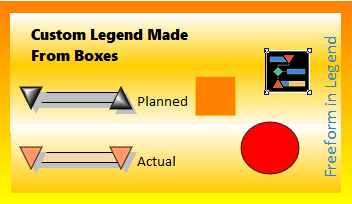
  • An alternate legend can be created using Groups.

  • Learn more about the legend.


Related Topics

  1. Format freeform text
  2. Symbol notes
  3. Pictures
  4. Create a picture of each page
  5. Groups
  6. Symbol properties